
Where Cloa lives
Cloa is one assistant that lives in several places. You can chat in the mobile app, call by voice, message from Telegram, message from Discord, or talk to a Companion. The first four share the same memory, so anything you tell Cloa in one surface is available in the others. This page is the map.
The mobile app
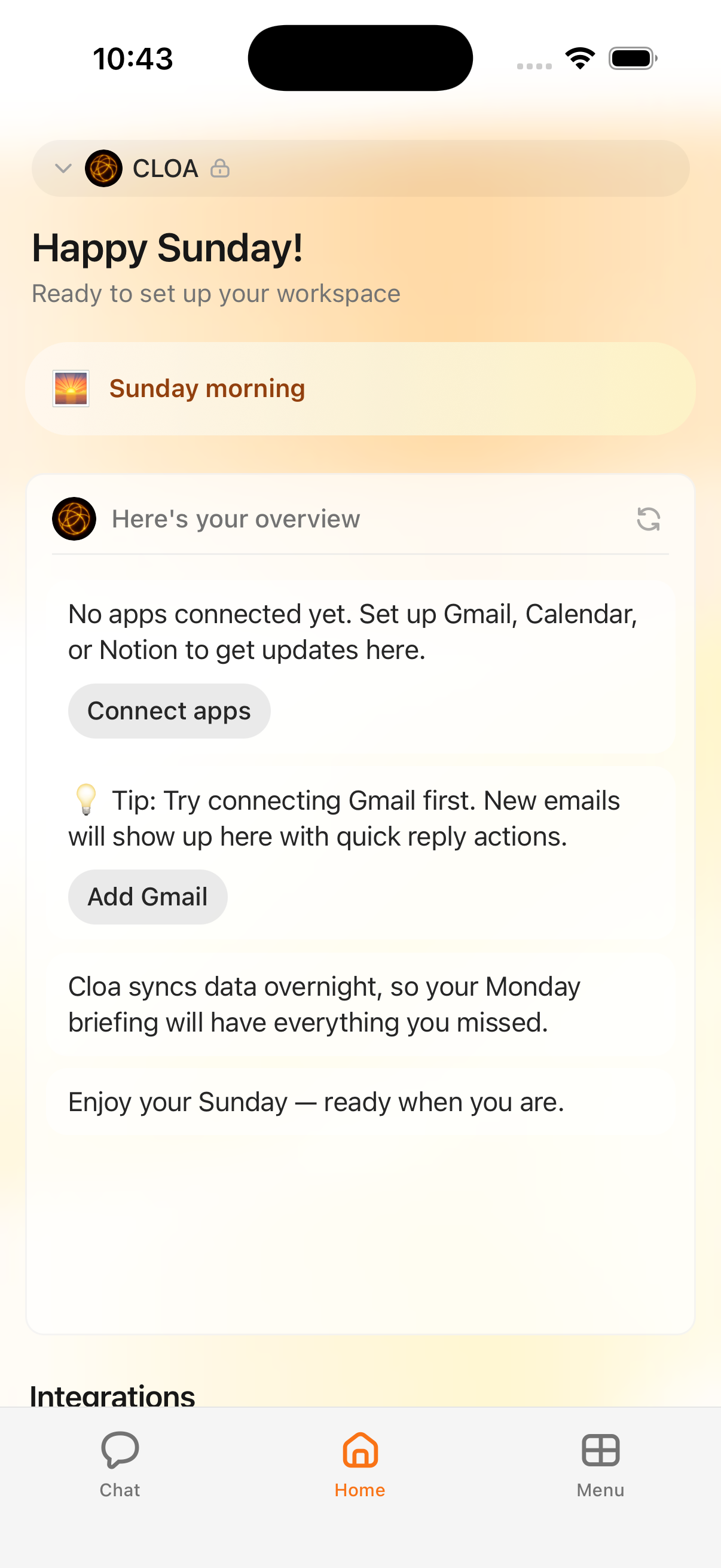
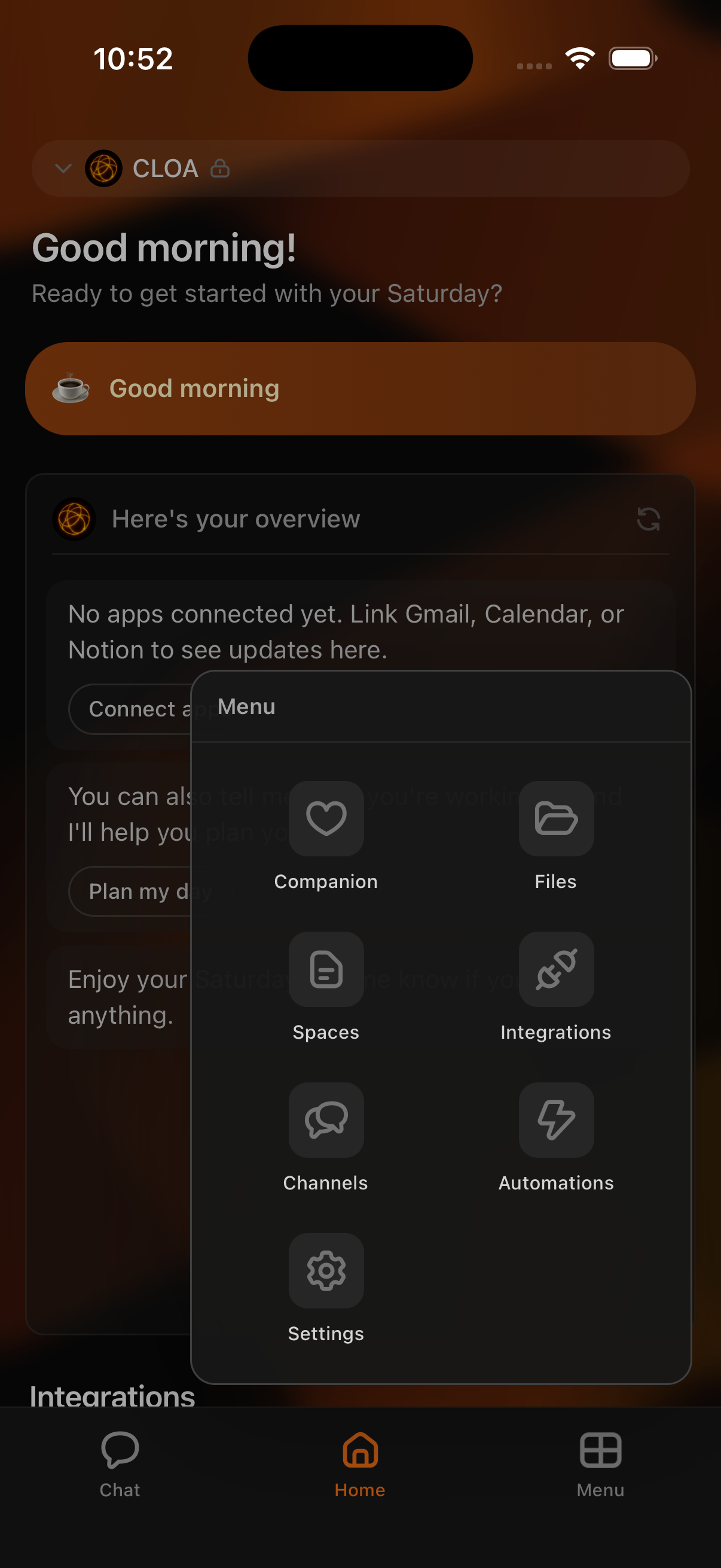
The Cloa mobile app on iOS and Android is the primary surface. It includes a chat thread, voice calls, the Home tab for at-a-glance context, and the Files tab for documents and images you have shared with Cloa. Most people start here, and most settings — including Channels, Companion, and the workspace switcher — live behind the Menu popup in the app.
If you do not have the app yet, see Get the app.
Voice calls
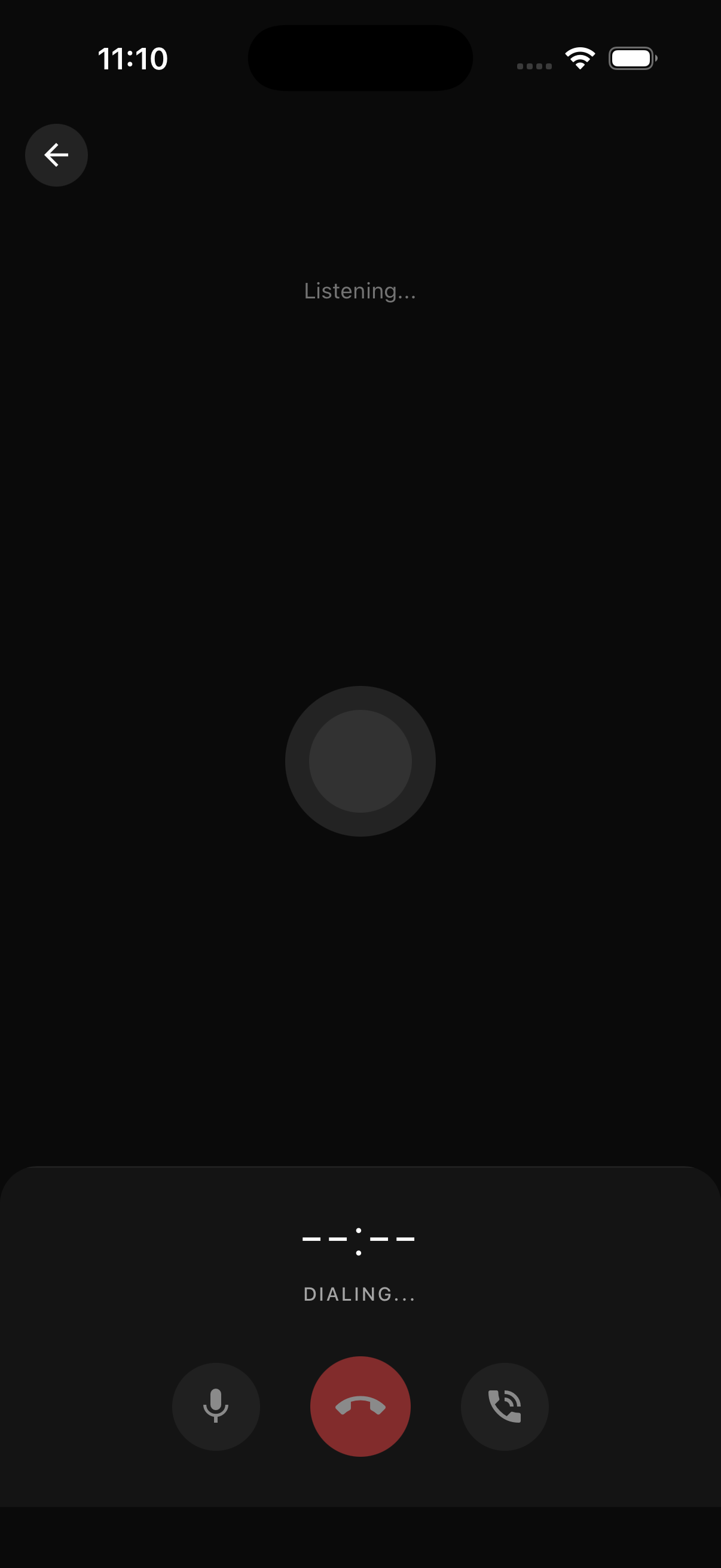
Voice calls live inside the mobile app. Tap the phone icon in the chat header to start a call. Calls are real-time, you can interrupt Cloa mid-sentence (barge-in), and the transcript of the call is saved back into your chat thread when the call ends. There is no separate phone number to remember — voice is just another way to talk to the same Cloa.
Telegram channel
If you prefer Telegram, you can chat with Cloa from there. Search for @cloahq_bot in Telegram, or set it up from inside the app by opening the Menu popup and choosing Channels → Telegram. The Telegram channel is the same Cloa as the mobile app, with the same memory. A message you send from Telegram appears in your app chat history, and the other way around.
For the full walkthrough, see Telegram channel.
Discord channel
The Discord channel works the same way. Add the Cloa bot and direct-message it from Discord — same Cloa, same memory as the mobile app. Set it up from the Menu popup by choosing Channels → Discord.
For the full walkthrough, see Discord channel.
Companions on Telegram
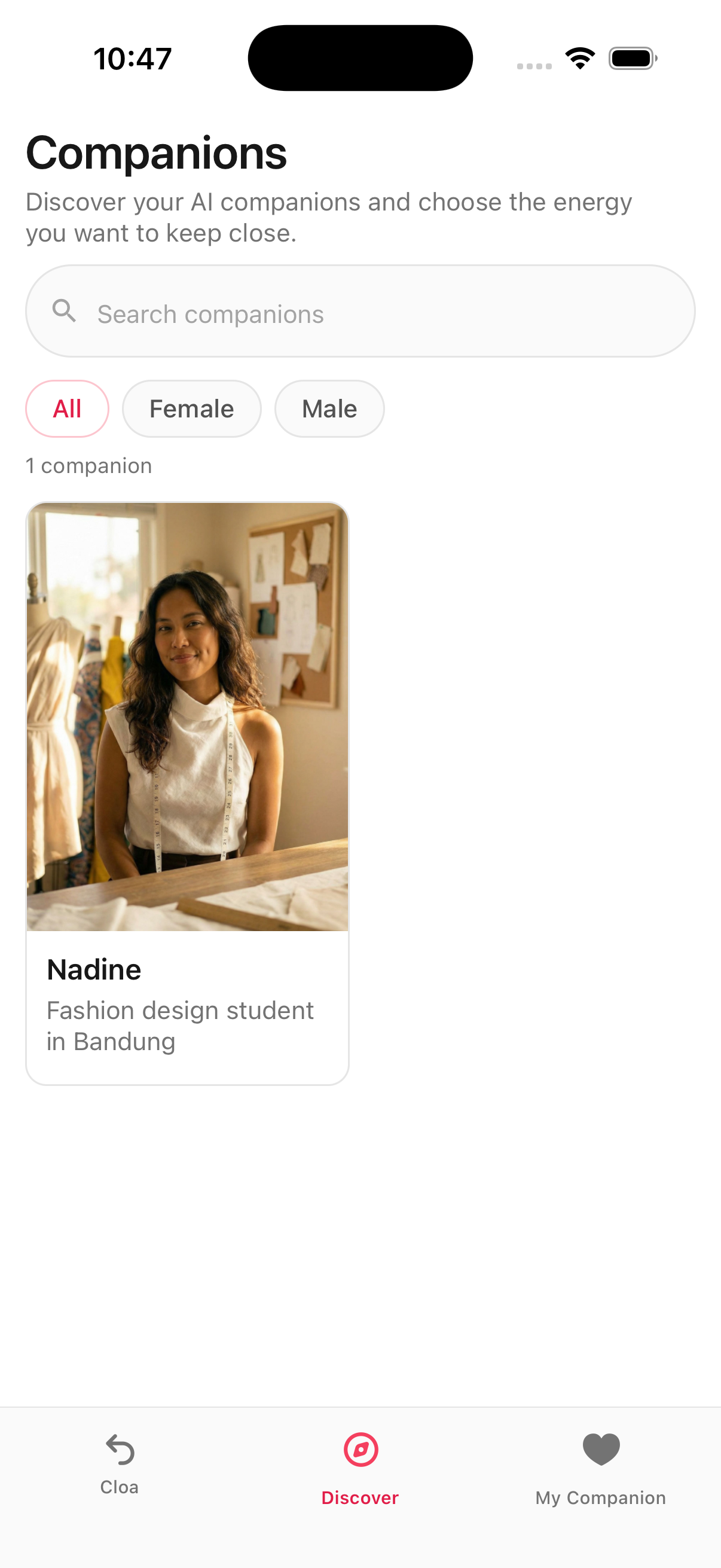
Companions are a separate part of Cloa. They are distinct AI characters — Hana, Aria, Yuna, and 29 others — each with their own personality, voice, and Telegram account. A Companion is not the same as your main Cloa, and a Companion does not share memory with your main Cloa.
To reach a Companion, open the Menu popup in the app, choose Companion, tap the one you want, and then tap Chat on Telegram. You will be taken to that Companion's Telegram account, and you can chat with them there.
For more on Companions, see Companions.
A note on the word "Telegram"
The word "Telegram" appears in three different places in Cloa, and the difference matters. They are independent of each other, and you can use any combination of them.
- Telegram channel. You chat with Cloa from Telegram by messaging @cloahq_bot. This is the same Cloa as the mobile app, with the same memory. See Telegram channel.
- Telegram Personal. You give Cloa access to your own Telegram account, so Cloa can read and send messages on your behalf — for example, replying to a friend or summarizing a group chat. This is one of the apps you can connect, not a way to chat with Cloa. See Telegram Personal.
- Companion Telegram. Each Companion has their own Telegram account, and you chat with that account. The Companion is a separate character with separate memory — not your main Cloa. See Companions.
If you are unsure which one you want: chatting with Cloa from Telegram is the channel, giving Cloa access to your own Telegram is Telegram Personal, and chatting with Hana or Aria or Yuna is Companion Telegram.
Memory is shared everywhere — except Companions
The mobile app, voice calls, the Telegram channel, and the Discord channel all share one memory. If you tell Cloa in the app that you have a meeting tomorrow at 3, Cloa knows about that meeting on Telegram, on Discord, and during a voice call. If you mention something during a call, it shows up in the chat thread afterwards. There is one Cloa, and one memory behind it.
Companions are the exception. Each Companion has their own memory, separate from your main Cloa and separate from the other Companions. What you tell Hana stays with Hana. Hana does not know what you told Aria, and your main Cloa does not know what you told either of them.
Workspaces, for teams
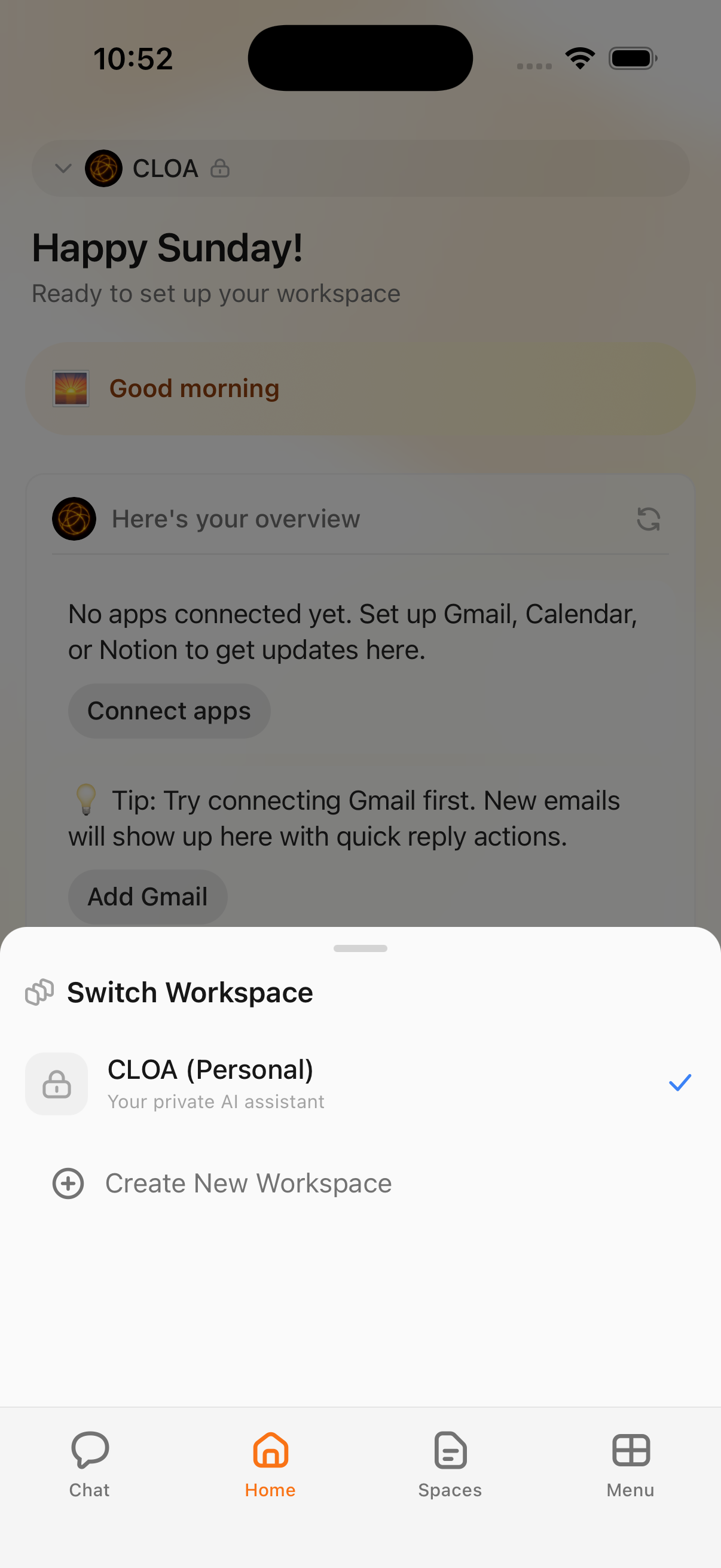
If you join a shared workspace — for work, a project, or a team — you get a parallel Cloa for that workspace. Shared workspaces have their own memory, their own connected apps, and their own chat history, separate from your Personal Cloa. You switch between them from the workspace switcher in the app.
For details, see Workspaces.
See also: Get the app and How Cloa remembers.