
Plans and billing
Kyona offers three plans — Free, Plus, and Pro. Pick the one that matches how much you use Kyona.
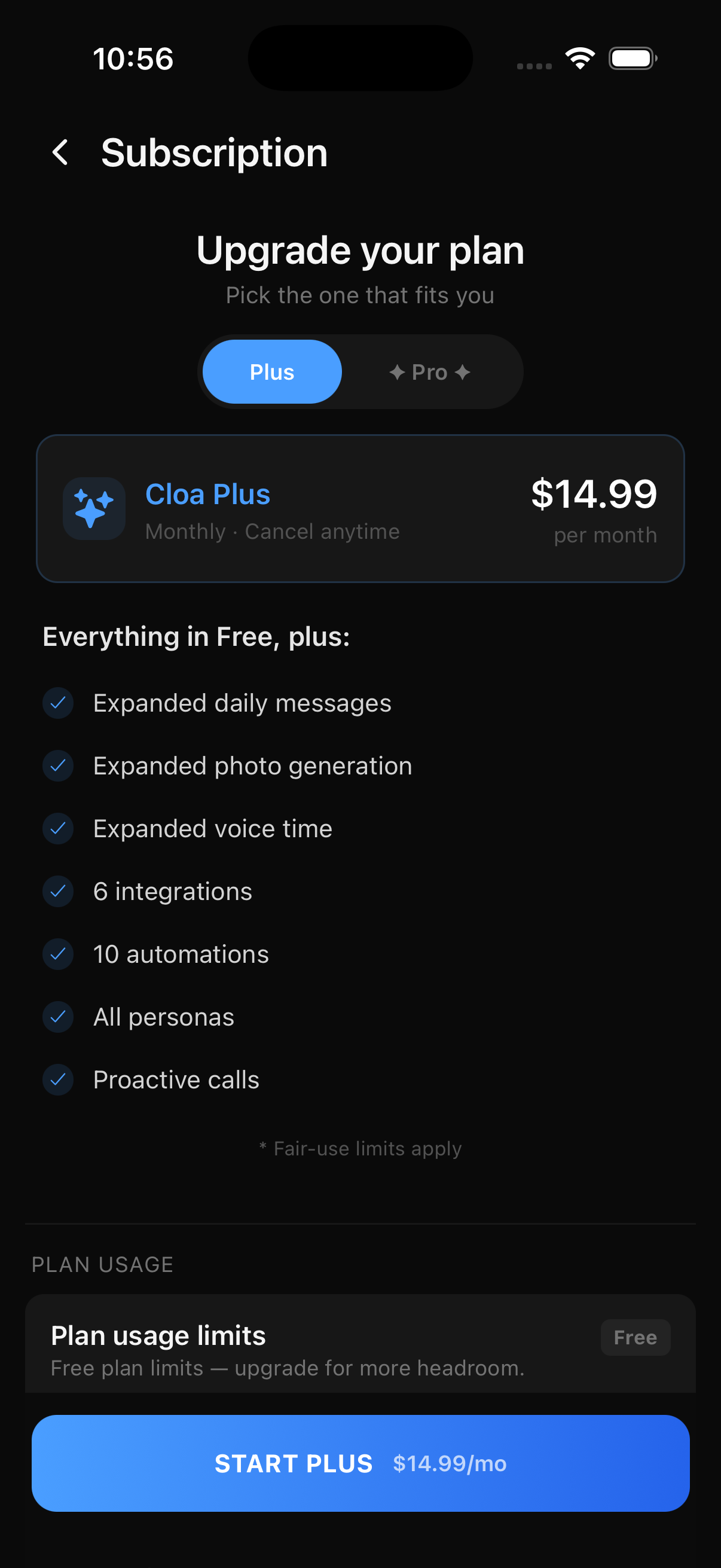
How to get to billing
Open the Kyona app and go to Settings → Plan & Billing. This screen shows your active plan, the price, your usage for the current period, and the option to change or cancel your subscription.
The three plans
Every account starts on Free. You can upgrade at any time, and you can switch between Plus and Pro whenever you want.
Free — $0/month
A no-cost plan to try Kyona and use it for light daily activity.
| Category | Limit |
|---|---|
| Messages | 20/day |
| Companion Chat | 20/day |
| Photos | 3/month |
| Voice Messages | 4/month |
| Voice Calls | 5 min/month |
| Integrations | 2 |
| Automations | 2 |
Plus — $14.99/month
More room for regular daily use, more photos, more voice, and more connected apps.
| Category | Limit |
|---|---|
| Messages | 200/day |
| Companion Chat | 200/day |
| Photos | 50/month |
| Voice Messages | 50/month |
| Voice Calls | 60 min/month |
| Integrations | 6 |
| Automations | 10 |
Pro — $39.99/month
For people who use Kyona throughout the day. Messages and Companion Chat are unlimited. Photos, voice, and calls have monthly caps.
| Category | Limit |
|---|---|
| Messages | Unlimited |
| Companion Chat | Unlimited |
| Photos | 500/month |
| Voice Messages | 500/month |
| Voice Calls | 600 min/month |
| Integrations | 100 |
| Automations | 100 |
Usage dashboard
The Usage This Period section shows how much of each category you've used. Each row displays your current usage against your plan's limit — for example, 12/50 for Photos on Plus.
Categories reset on different schedules:
| Category | Reset schedule |
|---|---|
| Messages | Daily |
| Companion Chat | Daily |
| Photos | Monthly |
| Voice Messages | Monthly |
| Voice Calls | Monthly |
| Integrations | Capacity-based (does not reset) |
| Automations | Capacity-based (does not reset) |
Here's what each one tracks:
- Messages — text messages you send to Kyona.
- Companion Chat — messages you send to a Companion persona.
- Photos — AI-generated photos from Companions.
- Voice Messages — voice messages you send to Companions.
- Voice Calls — minutes spent on a real-time voice call with Kyona.
- Integrations — connected apps such as Gmail, Notion, or Slack. To free up a slot, disconnect one from the Integrations screen.
- Automations — saved automations on your account. To free up a slot, delete one from the Automations screen.
When you get close to a limit, Kyona shows a banner in chat so you're not caught off guard.
Upgrading
- Open Settings → Plan & Billing.
- Switch between the Plus and Pro tabs to compare what each includes.
- Tap the start button for the plan you want.
- Complete payment through the App Store on iOS or Google Play on Android.
Your new plan takes effect right away, and your higher limits are available immediately.
Downgrading
When you switch to a lower plan, your current plan stays active until the end of the billing period. After that date, your account moves to the lower plan and the new limits apply.
If your current usage is above the new plan's limits — for example, you have eight connected apps but Plus allows six — you'll need to disconnect some before the change takes effect.
Cancelling
You can cancel any time. On Settings → Plan & Billing, tap Manage to open your subscription in the App Store or Google Play, where you can cancel. Your plan remains active through the end of the current billing period, so you won't lose access mid-cycle. After that date, your account reverts to Free.
You don't lose your chats, memories, or settings when you cancel — your account stays exactly as it is, just on the Free plan with Free limits.
Billing and payment
Subscriptions are billed through the App Store on iOS or Google Play on Android. Kyona never sees your payment details.
- Monthly billing — you're charged on the same date each month.
- Cancel anytime — no penalties and no contract.
- Receipts — available in your App Store or Google Play purchase history.
- Payment method — managed in your Apple ID or Google account settings.
To change your payment method or update your billing address, open your Apple ID settings on iOS or your Google account settings on Android. Kyona can't change these for you.
Refunds and disputes
Receipts and refunds run through Apple or Google's standard process — that's the same path as every other app on your phone.
- On iOS: Visit reportaproblem.apple.com and sign in with your Apple ID to request a refund.
- On Android: Open the Google Play Store, go to your subscriptions, and follow the refund instructions for the charge.
If you have a billing question Apple or Google can't resolve, contact Kyona support and we'll help where we can.
See also
Want to know what Kyona stores about you? See Privacy and your data. For upcoming billing features, see Coming soon.