
Connect your apps
Connecting an app to Kyona lets you ask Kyona to do things in that app on your behalf — schedule a meeting, find a Notion page, summarize a Slack channel, send an email.
What gets better when you connect apps
The more of your day Kyona can see, the more useful it becomes. A few concrete examples:
- Communication. Kyona can catch you up on your Slack threads, draft replies, and send messages once you approve them — ask it to recap a busy channel after lunch. With Gmail, Kyona can write and send emails for you today; reading and drafting from your inbox are coming soon.
- Productivity. Kyona can search your Notion pages, pull up a Google Doc, update a row in a sheet, or create a new doc from a conversation you just had. Ask Kyona to summarize a long Notion page or to draft a brief in Docs.
- Calendar. Kyona can read your schedule, find open slots, create events, and warn you about conflicts before you commit to something. Ask Kyona to book a focus block tomorrow morning or to move your 3pm to Friday.
- Fitness. Kyona can read your recent runs and rides from Strava and bring them into your day. Ask Kyona how your training has trended this month.
The apps you can connect
Kyona currently supports around twenty-five apps across the categories below.
Google Workspace
Kyona connects to the full Google Workspace family in a single sign-in: Gmail, Calendar, Drive, Docs, Sheets, Slides, Tasks, Contacts, Forms, Meet, YouTube, Chat, and several more. See the Google Workspace overview for the complete list and what Kyona can do in each one.
Microsoft
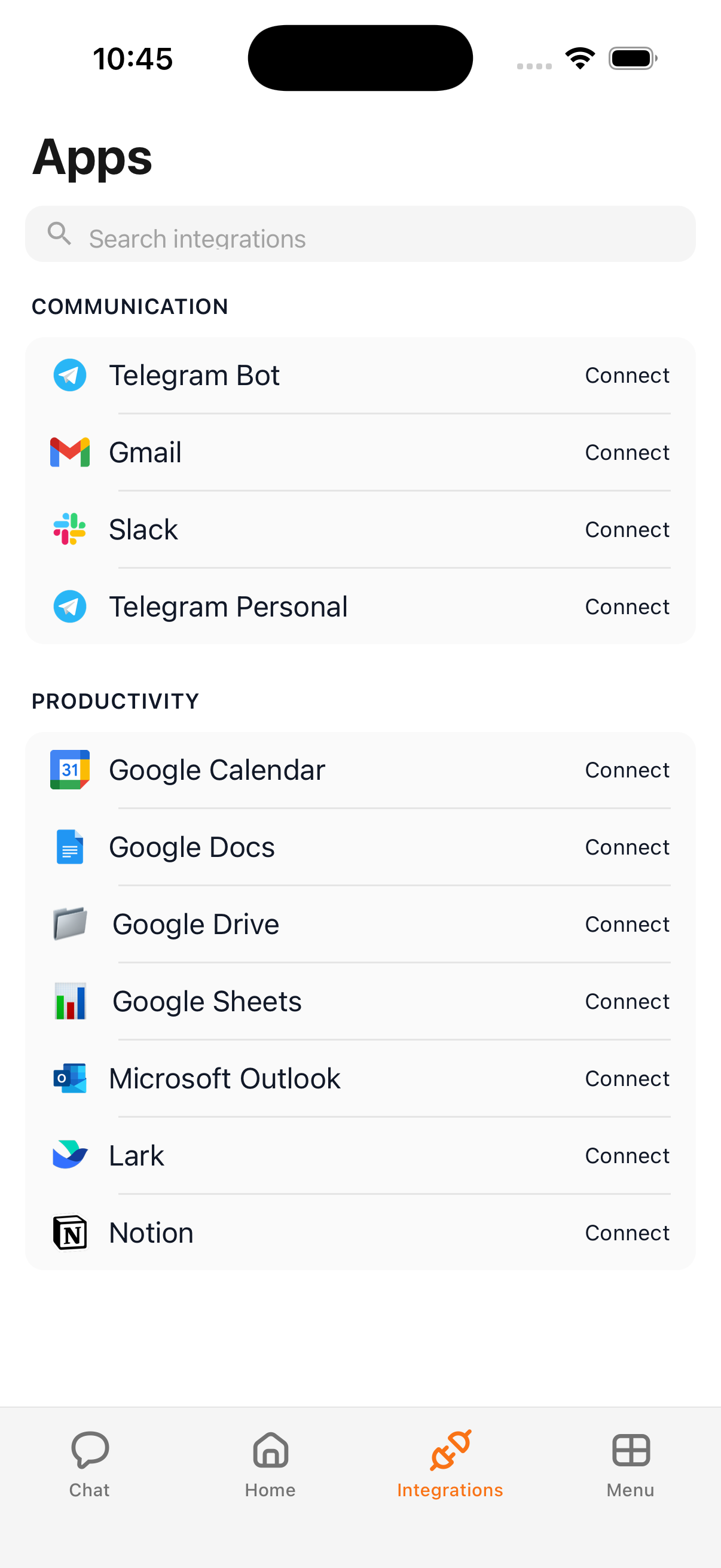
- Outlook — email and calendar in one connection.
Productivity
- Notion — search and read your pages, create new pages, update databases.
- Lark — documents, sheets, and messaging inside your Lark workspace.
Communication
- Slack — read channels and threads, send messages.
- Telegram Personal — connect your own Telegram account so Kyona can read and send messages in your chats. (This is different from the Telegram channel for chatting with Kyona itself — see the note below.)
Fitness
- Strava — your activities, distance, and pace over time.
How to connect an app
- Open the Menu and tap Integrations. You will land on the Apps screen.
- Browse the list or use the search bar to find the app you want.
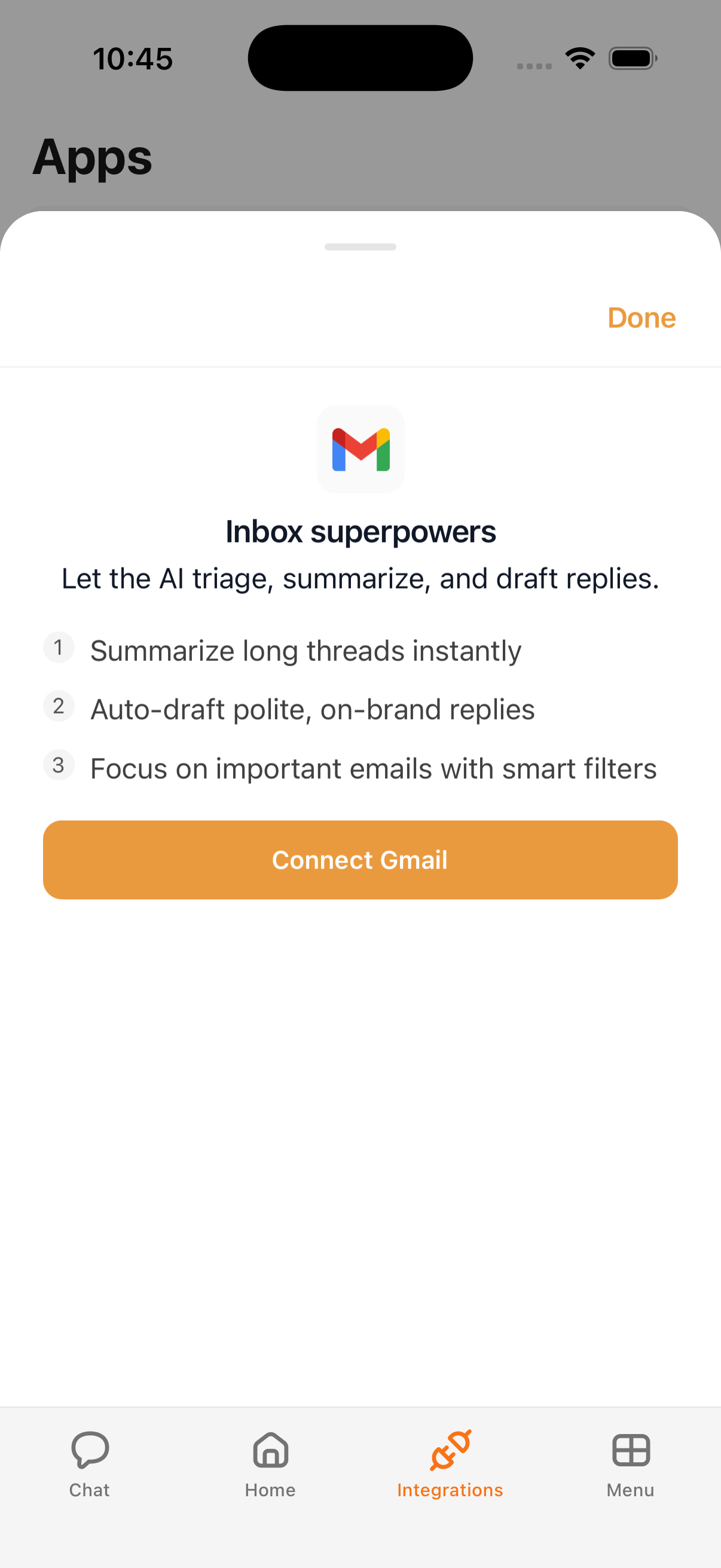
- Tap the app to open its details. You will see a short summary of what Kyona can do with it.
- Tap Connect.
- You will be taken to a standard sign-in screen for that service — Sign in with Google, Sign in with Microsoft, Sign in with Notion, and so on. Sign in and confirm what you want Kyona to be able to do.
- You will be returned to Kyona, and the app will show as connected.
Kyona never sees your password. The sign-in happens with the service directly, and Kyona only receives the access it asks for on that screen.
How permissions work
Every connected app has three settings that control how Kyona acts in it:
- Off — Kyona will not touch this app, even if you ask.
- Ask First — Kyona will check with you before doing anything that changes data, like sending an email or creating an event.
- Always — Kyona can act in this app without asking each time. Best for low-risk, repetitive things.
You can change a setting at any time, and you can mix and match across apps — for example, Always on Calendar and Ask First on Gmail. The full breakdown is in How permissions work.
What Kyona never sees
A few things are always off-limits, by design:
- Your passwords. Sign-in happens with each service directly.
- Any other credentials, security keys, or recovery codes.
- Data from apps you have not connected.
- Data from a connected app after you disconnect it.
Channels vs integrations
Two things share names like Telegram and Discord in Kyona, and it helps to keep them separate.
- Integrations let Kyona act inside the apps you use — check your calendar, edit a Notion page, send a Slack message. They live on the Apps screen described on this page.
- Channels let you chat with Kyona from a messaging app — for example, sending a message to your Kyona bot on Telegram or Discord and getting a reply, without opening the Kyona app. They live in a separate Channels area.
So Telegram Personal on the Apps screen connects your Telegram account so Kyona can act in your chats. The Telegram channel is a separate thing — a Kyona bot you talk to from Telegram. See Channels for that side of the product.
Disconnecting
You can remove a connection at any time:
- Open the Menu and tap Integrations.
- Tap the connected app.
- Tap Disconnect.
Kyona loses access immediately. Your data in the original app is untouched — Kyona simply stops being able to reach it.
See also
- How permissions work — the deeper look at Off, Ask First, and Always.
- Channels — chat with Kyona from Telegram, Discord, and other messaging apps.