
Google Calendar
Connecting Google Calendar lets Kyona see your schedule, find open time, create events, and warn you about conflicts.
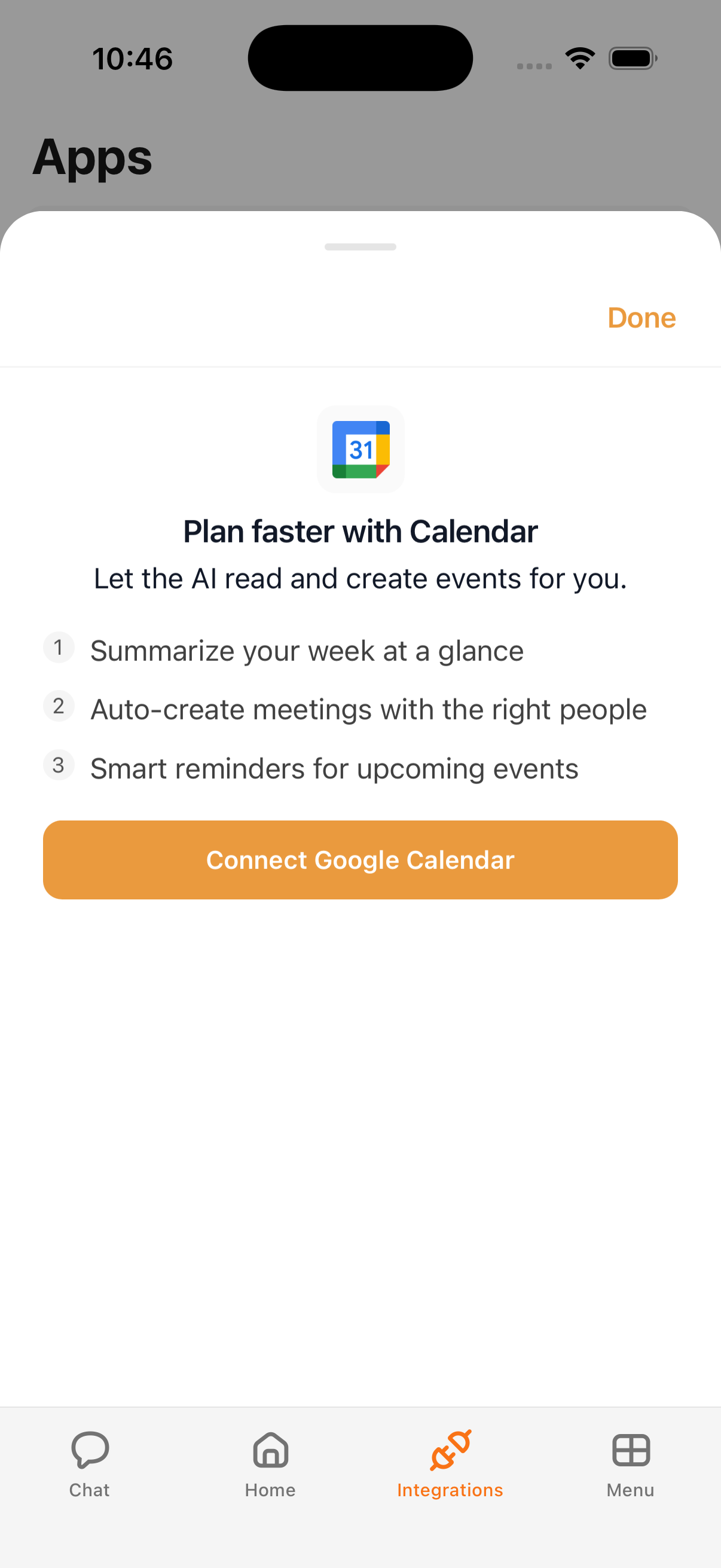
What Kyona can do with Google Calendar
| Action | Description |
|---|---|
| Read events | View your upcoming meetings, blocks, and events across your calendars. |
| Create events | Add new meetings, focus blocks, and reminders on your behalf. |
| Update events | Move, reschedule, or change the details of an existing event. |
| Delete events | Remove an event from your calendar when you ask. |
| Manage calendars | Add, rename, or remove whole calendars — not just the events on them. |
Because Kyona can read your schedule, it can also spot double-bookings before they become a problem and surface open slots across a day or week, so you have something to plan around.
Example prompts
Once Google Calendar is connected, you can ask things like:
"What's on today?"
"Find me 30 minutes Friday afternoon."
"Move my 3pm to 4pm."
"Schedule a 45-minute sync with Sarah next Tuesday morning."
"Do I have any conflicts this week?"
How to connect
- Open the Kyona app.
- Tap Menu → Integrations → Google Calendar.
- Review the connect sheet describing what Kyona can do with your calendar.
- Tap Connect, then complete the standard Sign in with Google flow.
- Confirm the access Kyona requests to finish the setup.
Recommended permission settings
Each capability has its own permission, set independently to Off, Ask First, or Always.
| Capability | Suggested setting | Why |
|---|---|---|
| Read events | Always | Reading your schedule is routine and low-risk. Letting Kyona check freely keeps replies fast and briefings accurate. |
| Create events | Ask First | New meetings affect other people. Confirm each one until you're comfortable. |
| Update events | Ask First | Moves and reschedules can ripple into attendees' calendars. Approve until the patterns feel safe. |
| Delete events | Ask First | Removing an event is hard to undo, so a quick confirmation is worth it. |
| Manage calendars | Ask First | Adding or removing a whole calendar is a bigger change than editing a single event. |
You can change any of these anytime under Menu → Integrations → Google Calendar. See Understanding permissions for the full model.
How Calendar data shows up elsewhere
Once connected, your calendar quietly powers a few other parts of Kyona:
- Morning brief. Today's meetings, the first commitment of the day, and any tight back-to-backs appear in your daily brief.
- Outbound calls. When Kyona calls you, it can use your calendar to prep you before your next meeting — who you're meeting, when, and what it's about.
- Automations. Use scheduled or event-driven flows to send weekly summaries, flag busy days in advance, or block focus time on a recurring basis.
Disconnecting
To remove Google Calendar from Kyona, go to Menu → Integrations → Google Calendar and tap Disconnect. Kyona stops reading your calendar immediately, and any saved access is revoked. You can reconnect at any time by repeating the steps above.