
Slack
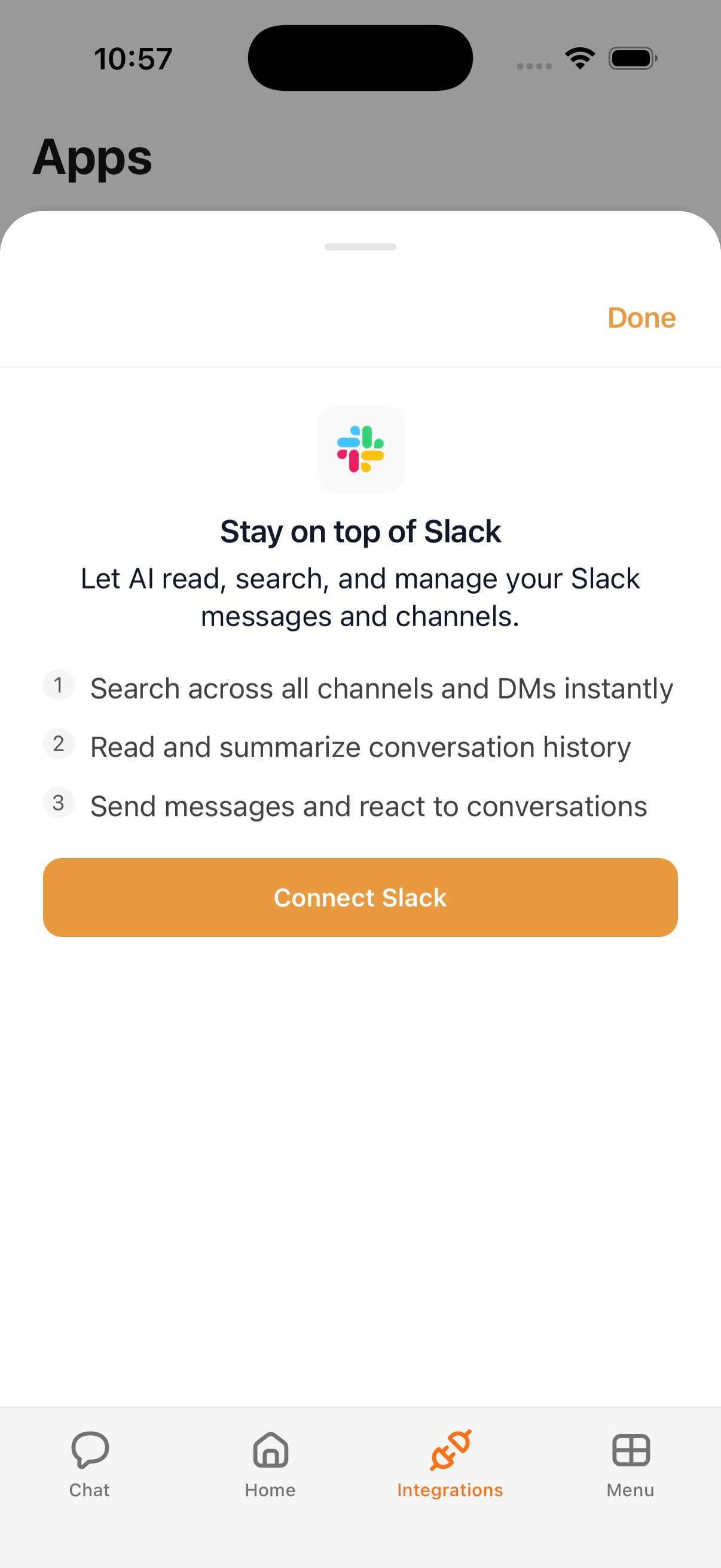
Connect Slack so Kyona can catch you up on channels, find messages buried in your history, and post on your behalf when you ask. Kyona acts as you in your Slack workspace, so messages and reactions appear under your name.
What Kyona can do with Slack
| Action | Description |
|---|---|
| Read channels | Pull recent messages from channels you belong to for summaries and context |
| Search messages | Find specific messages across your channels and DMs |
| Post messages | Send messages to channels or direct messages on your behalf |
| React with emoji | Add emoji reactions to messages you point Kyona at |
Example prompts
Once Slack is connected, you can ask things like:
Catch me up on #eng from this morning.
What's been said about the launch this week?
Post my weekly update to #team.
Find Sarah's message from last Tuesday about the pricing doc.
How to connect
- Open the Kyona app.
- Go to Menu → Integrations → Slack.
- Tap Connect, then choose the Slack workspace you want to link.
- Sign in with Slack and approve access.
If you belong to several workspaces, you can repeat the steps to connect a different one later. Kyona works against one Slack workspace at a time.
Recommended permission settings
Each Slack action has its own setting under Integrations → Slack. You can choose Off, Ask First, or Always per action.
| Action | Suggested setting | Why |
|---|---|---|
| Read channels | Always | Lets Kyona pull context without interrupting you |
| Search messages | Always | Search is read-only and behaves like a normal lookup |
| Post messages | Ask First | Anything posted appears under your name, so a quick review is worth it |
| React with emoji | Ask First | Reactions are visible to your team and easy to misfire |
You can change any of these later from the same screen.
How Slack data shows up elsewhere in Kyona
- Your morning brief can include highlights from channels you read most often, so you start the day with a sense of what changed overnight.
- Automations can trigger on Slack activity or post to Slack on a schedule, for example a weekly recap to #team or a nudge when a specific channel goes quiet.
- When Kyona references a Slack message in chat, it links back to the original so you can jump into the thread.
Workspace admin note
On most free and standard Slack plans, you can connect Kyona on your own. On Enterprise Grid and some larger workspaces, an admin may need to approve third-party apps before you can sign in. If the connect flow stops at an approval screen, ask your workspace admin to allow Kyona, then try again.
Disconnecting
To remove Slack:
- Open Menu → Integrations → Slack.
- Tap Disconnect.
Kyona stops reading, searching, and posting in Slack right away. You can also revoke Kyona from your Slack workspace settings under Manage apps if you prefer to remove it from the Slack side.
See also
- Understanding permissions for how Off, Ask First, and Always behave across apps.
- Automations for scheduled Slack recaps and posts.
- Gmail and Outlook if you also want Kyona handling email.