
Notion
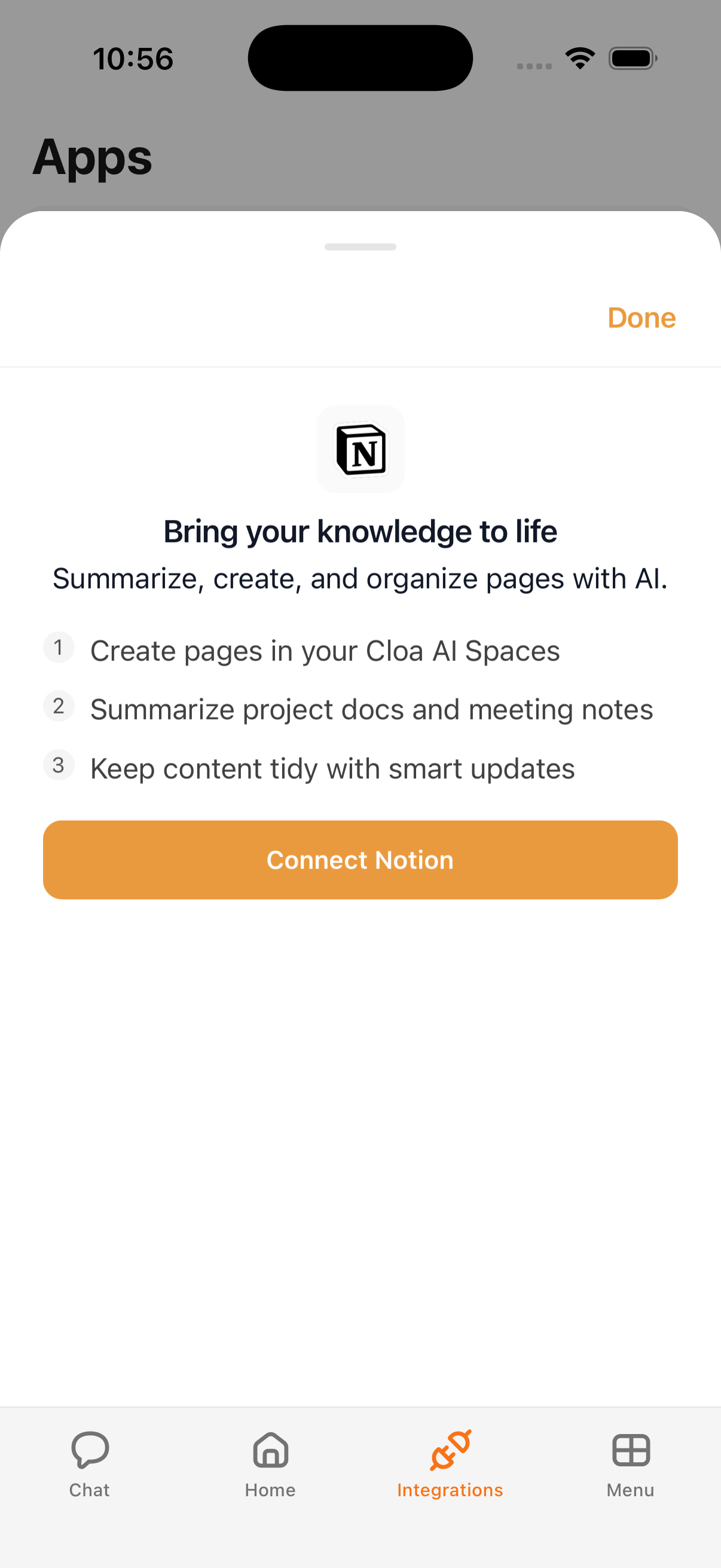
Connect Notion to bring your workspace into Kyona. Once linked, Kyona can find pages you already wrote, pull their contents into a conversation, draft new pages on your behalf, and keep existing ones up to date.
What Kyona can do with Notion
| Action | Description |
|---|---|
| Search pages | Find pages by title or content across the workspaces you share |
| Read pages | Pull the contents of a page into the conversation for summaries or follow-ups |
| Create pages | Draft new pages, meeting notes, or database entries from your chat |
| Update pages | Edit existing pages and append new sections |
| Search databases | Locate the right database for a task |
| Query database rows | Read structured records from a database |
| Update rows | Modify entries in a database you've shared |
Example prompts
Once Notion is connected, try asking Kyona:
"Find my Q2 planning doc in Notion and summarize the open questions."
"Create a Notion page from our last conversation and put it in the Meetings database."
"Update the launch checklist with the items we just agreed on."
"What's in my Reading List database from this month?"
"Search Notion for anything about the pricing rework."
How to connect
- Open the Kyona app.
- Tap Menu → Integrations → Notion.
- Tap Connect and sign in with Notion. You're handing credentials to Notion directly; Kyona never sees your Notion password.
- In Notion's picker, choose which workspaces and pages to share with Kyona. You can share an entire workspace, a few top-level pages, or a single database.
- Confirm the selection to return to Kyona. The integration is ready as soon as the screen closes.
You can change what's shared at any time from Notion's settings, or revisit the integration screen in Kyona to reconnect with a different set of pages.
Recommended permission settings
Each Notion action has its own setting under Integrations → Notion → Permissions. The defaults below match how most people use the integration.
| Action | Recommended | Why |
|---|---|---|
| Read (search, read pages, query databases) | Always | Reading is safe and powers most of what Kyona does with Notion |
| Create (new pages and rows) | Always | New pages are easy to delete or move if you don't want them |
| Update (edit pages and rows) | Ask First | Changes apply to existing work, so a quick confirmation keeps you in control |
Pick Off for any action you don't want Kyona to take, Ask First to confirm each time, or Always to let Kyona handle it without interrupting you. Kyona avoids destructive changes by default and only removes a page when you ask it to directly.
How Notion data shows up elsewhere
Once Notion is connected, Kyona can use it inside Automations as well. For example, a daily summary automation can pull this week's standup notes from Notion, combine them with your calendar, and post the result back as a new Notion page. Kyona keeps to the same per-action settings, so an automation that updates a page still asks first if that's your preference.
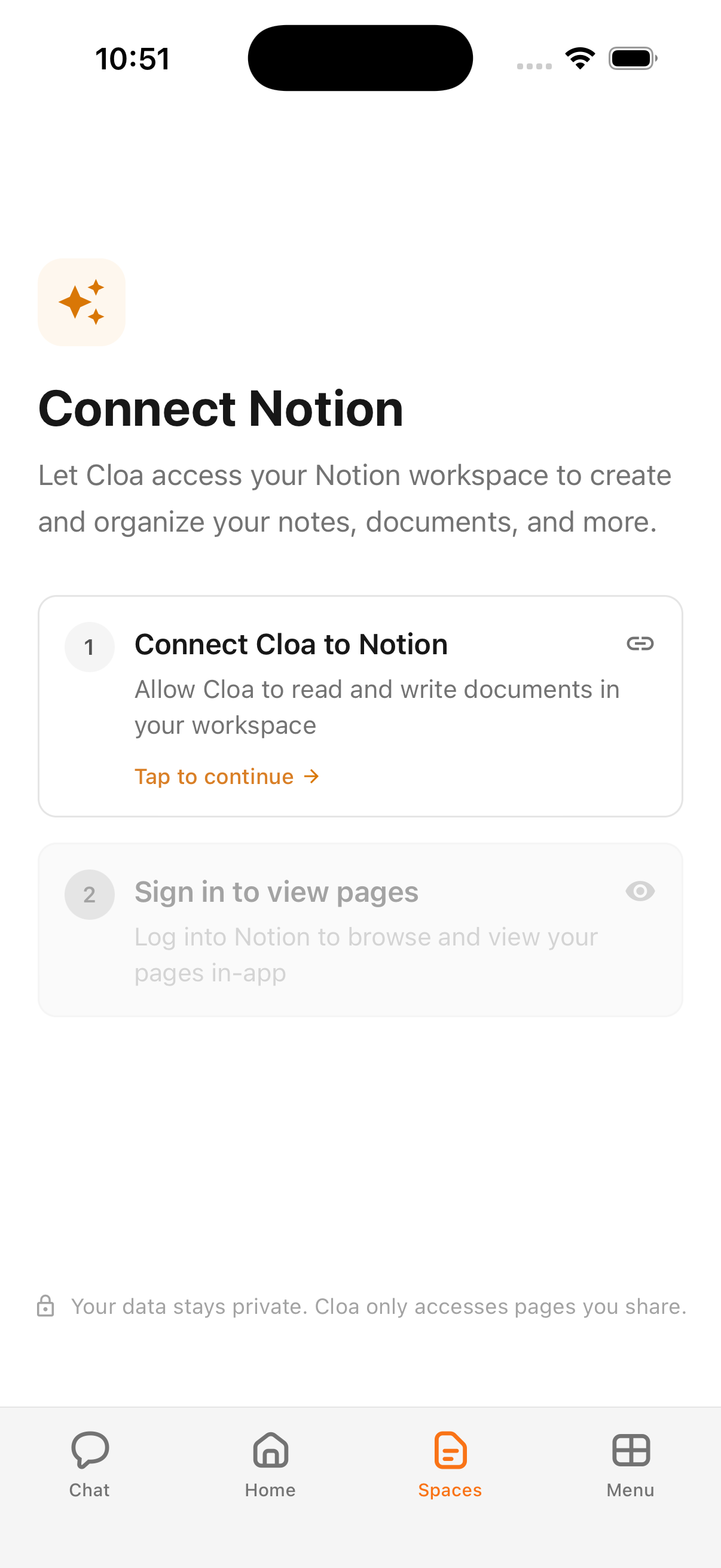
Kyona also offers Spaces for browsing connected Notion pages inside the app without starting a chat. Spaces is a separate feature; see Kyona Files for details.
Disconnecting
To remove the connection, open Menu → Integrations → Notion and tap Disconnect. Kyona immediately loses access to your Notion pages, and any active automation that relies on Notion pauses until you reconnect. To fully revoke access from Notion's side, visit your Notion settings and remove Kyona from the connected apps list.
See also
- Understanding permissions for how the Off, Ask First, and Always settings work across every integration
- Kyona Files for browsing Notion pages inside Spaces