
Voice calls
Voice calls let you talk to Kyona in real time — no typing, no waiting for sentences to finish.
Starting a voice call
Open any chat with Kyona and tap the phone icon in the chat header. The call screen opens, the connection establishes within a second or two, and Kyona greets you when it's ready to listen.
The voice call shares the same memory and context as your chat. If you told Kyona something last week, it still knows during the call.
What a call feels like
The call screen shows a soundwave visualizer, a running timer, and three controls along the bottom: mute, speaker, and end call.
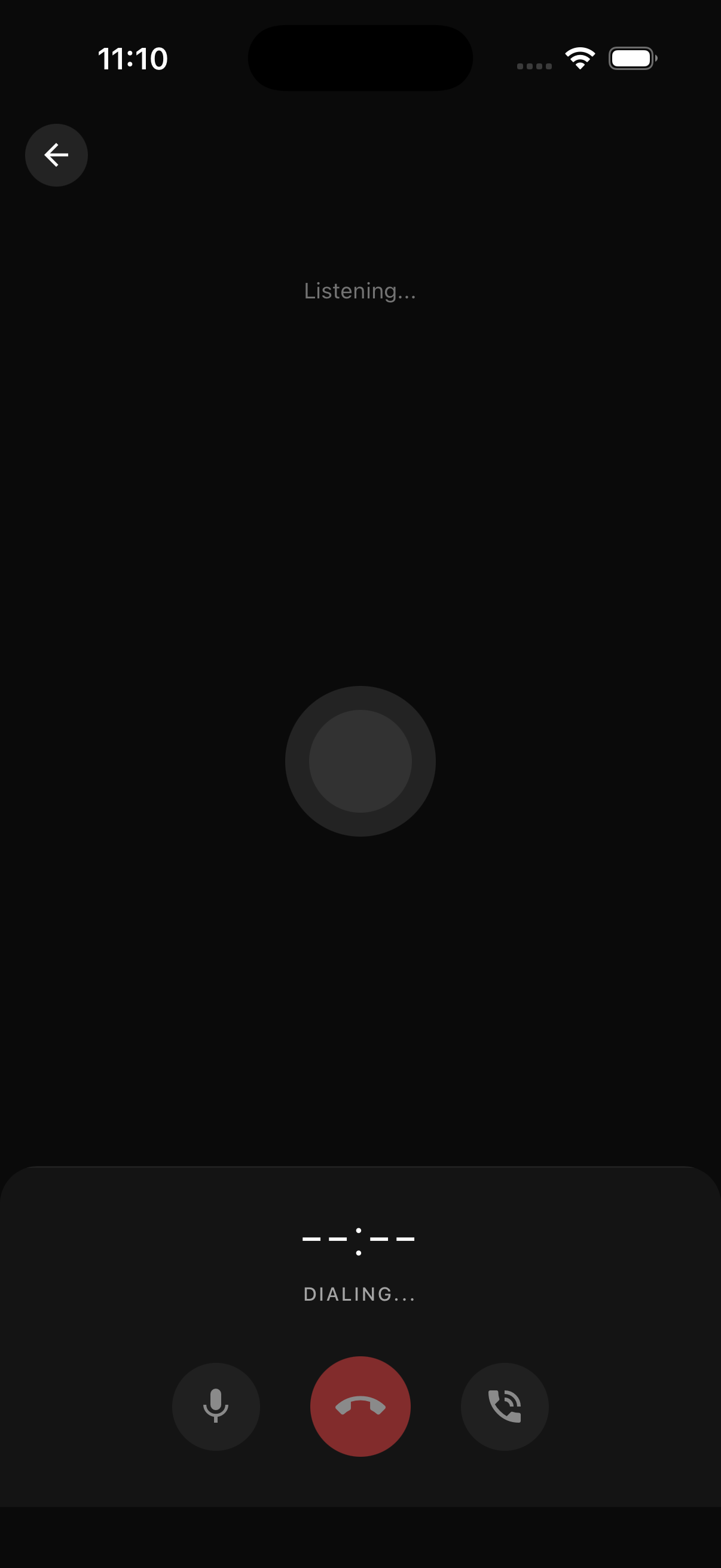
The visualizer reacts to your voice as you speak, so the call feels alive. Tap mute to pause your microphone, tap speaker to switch between earpiece and speakerphone, and tap end call when you're done.
There's no hold-to-talk gesture — just talk, and Kyona listens. The call works like a normal phone call.
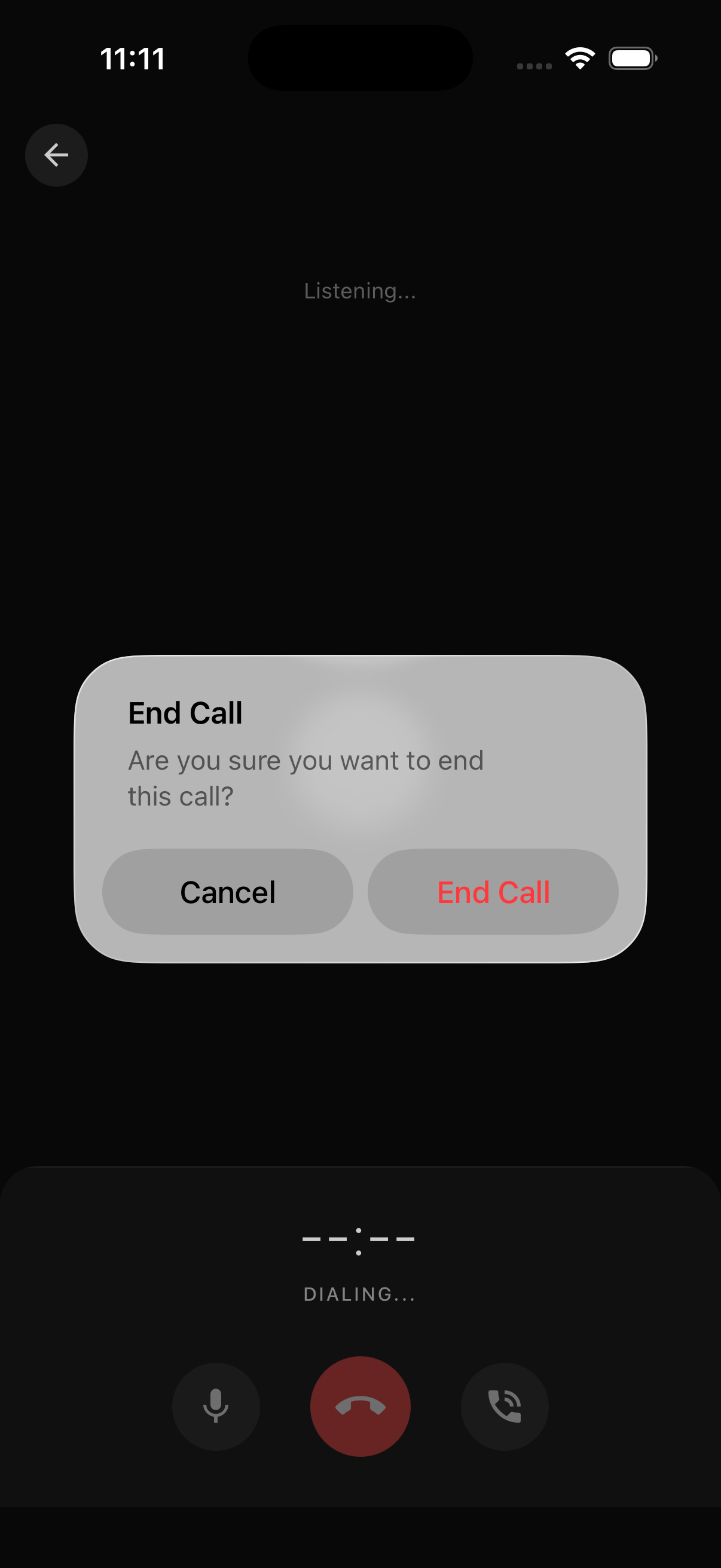
When you tap end call, a short confirmation appears so you don't hang up by mistake.
Interrupting Kyona (barge-in)
Barge-in means you can interrupt Kyona mid-sentence. Just start talking and Kyona stops to listen.
This is useful when Kyona starts heading in the wrong direction, when you already have the answer you needed, or when you want to redirect the conversation without waiting for it to finish. Calls feel less like dictation and more like a normal back-and-forth.
Kyona calling you
Kyona can phone you, not just the other way around. You can schedule a call for a specific time — a morning briefing, a midday check-in, a reminder before a meeting — or trigger one from an automation when something important happens.
A few examples of how people use this:
- A daily 8am call to walk through the day's calendar
- An automated call when a high-priority email lands
- A scheduled evening call to log what happened during the day
Set this up in Automations. When the call comes in, your phone rings inside the Kyona app and you can pick up like any other call.
Voice input in chat (the chat mic)
The chat mic is a separate feature from voice calls. Use it when you want to dictate a message instead of typing one.
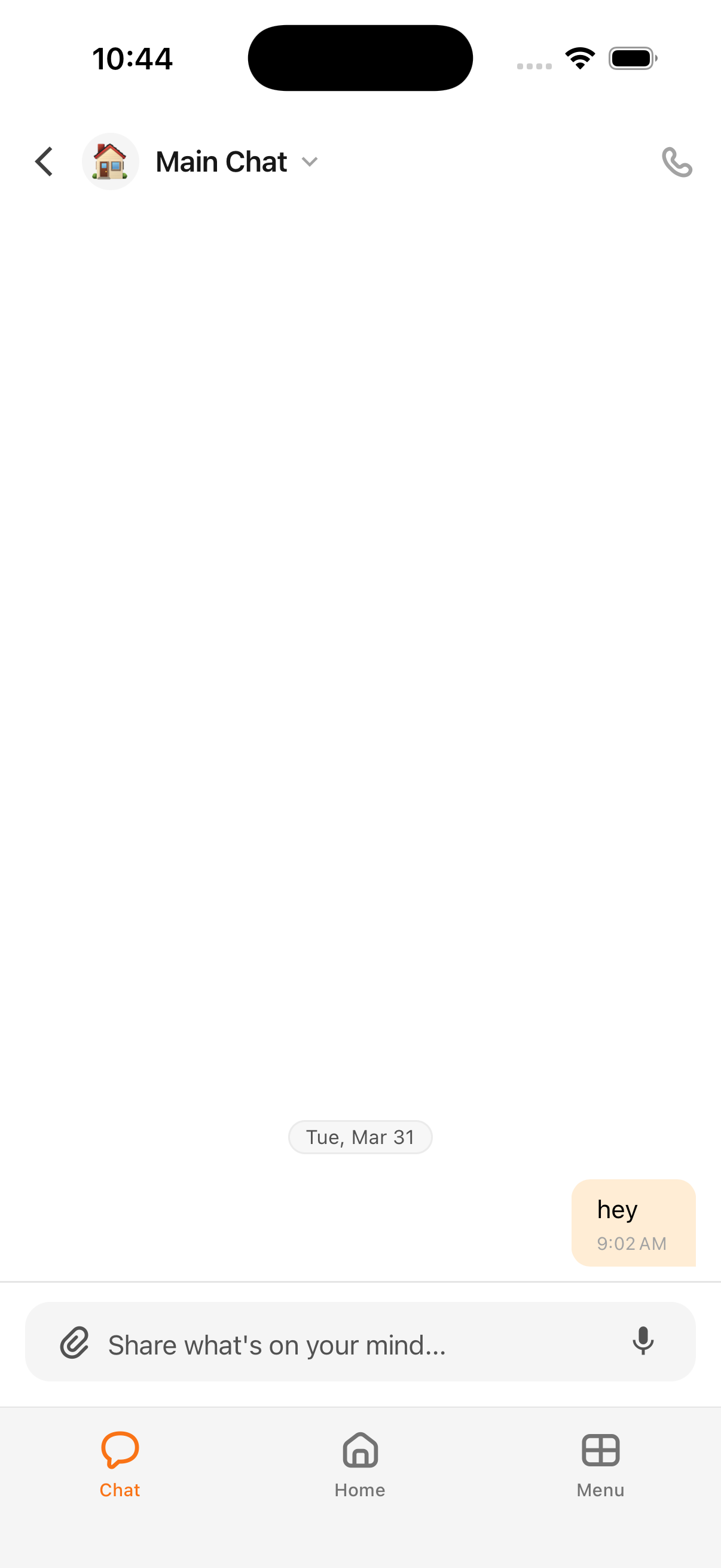
Tap the microphone icon to start dictating. Tap the stop button when you're done. Your speech is transcribed into the chat input box, where you can edit it before sending. Kyona doesn't reply until you send the message.
This is different from a voice call. The chat mic transcribes; the voice call talks back.
What's saved, what's not
Audio is processed in real time. Voice recordings aren't saved.
Voice call transcripts are saved into the chat thread, so you can scroll back and review what was said. Anything Kyona learned about you during the call also becomes part of its memory, the same way chat does.
Connection requirements
Voice calls need a stable internet connection. Wi-Fi or a strong cellular signal works best. If audio starts dropping or Kyona stops responding, your connection is the most likely cause.
Microphone permission
The first time you start a call, your phone asks for microphone permission. Tap Allow.
If you tapped Don't Allow earlier and now want to use voice calls, open iOS Settings, find Kyona, and turn Microphone on. Restart the app afterwards.
Voice calls with Companions
Coming soon. Today, Companion conversations happen in Telegram only. Voice calling a Companion from inside the Kyona app isn't available yet.
Coming soon
- Voice calls with Companions inside the app
- Selectable voices for the main Kyona assistant
See also: Voice call issues for audio problems.
How Kyona remembers
Kyona builds a memory of what you tell it — across chat, voice, and Telegram — so it can pick up where you left off without you repeating yourself.
Your morning brief
Kyona puts together a short summary of your day on the Home tab — calendar, email, tasks, and proactive nudges — and refreshes it throughout the day.