
Outlook
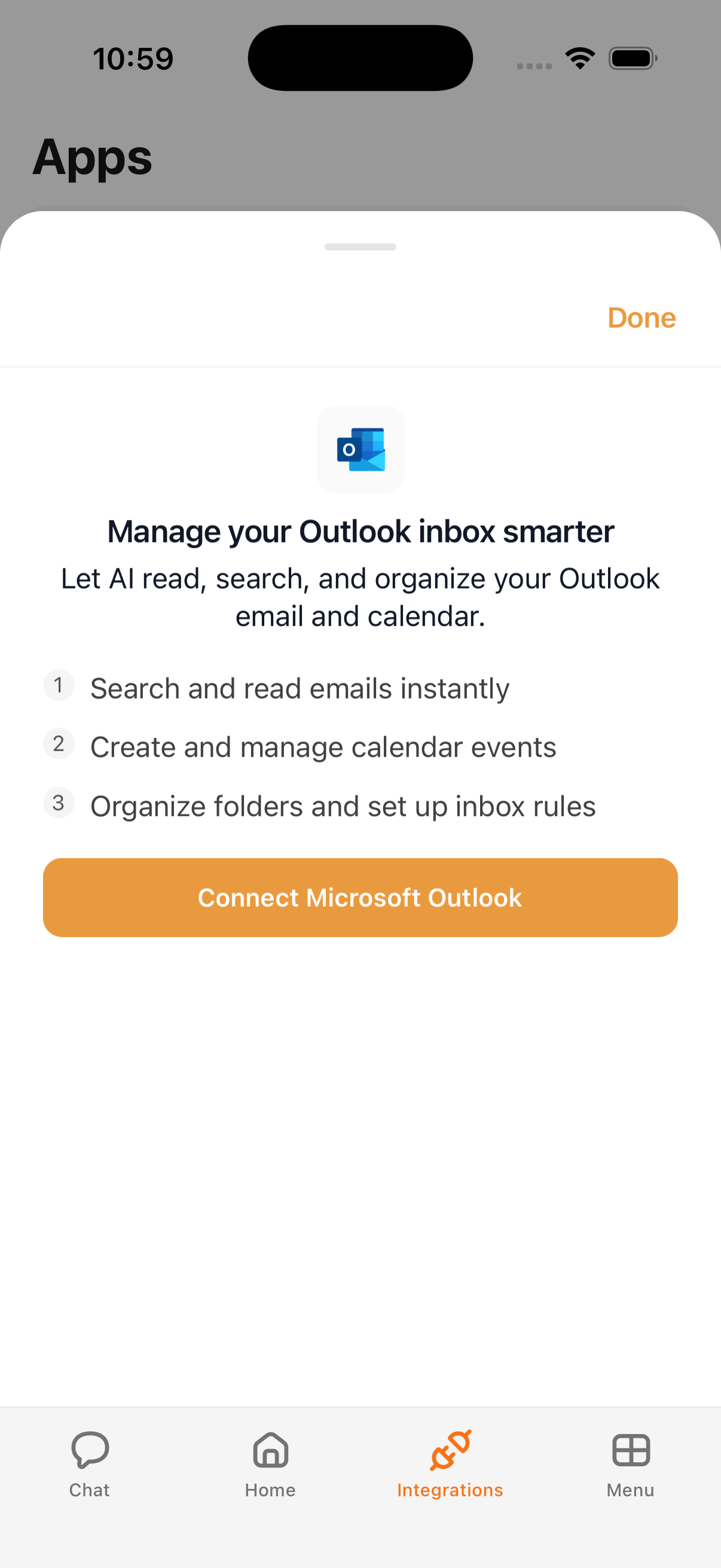
Connecting Outlook gives Kyona access to your Microsoft 365 mailbox and calendar through a single sign-in. Kyona can summarize what's in your inbox, draft and send replies, surface upcoming meetings, and schedule new events on your behalf, all from the same chat thread.
What Kyona can do with Outlook
| Capability | Description |
|---|---|
| Read email | Browse and summarize messages in your Outlook inbox and folders. |
| Send email | Draft replies and new messages from your Microsoft address. |
| Manage email | Mark messages as read or unread, create folders, and move mail between them. |
| Manage inbox rules | Create, update, and remove server-side rules that sort incoming mail. |
| Read calendar | View upcoming events, meeting details, and attendee responses. |
| Create and update calendar events | Schedule new meetings and adjust existing ones, including times and invitees. |
Example prompts
Once Outlook is connected, you can ask Kyona things like:
"Summarize my unread Outlook emails from this morning."
"Reply to Priya's email and tell her I can meet Thursday at 3 PM."
"What's on my Outlook calendar today?"
"Schedule a 30-minute review with Marcus on Wednesday afternoon."
"Create an inbox rule that moves newsletters into a Reading folder."
How to connect
- Open the Kyona app.
- Tap Menu → Integrations → Outlook.
- Tap Sign in with Microsoft and complete the Microsoft sign-in flow.
- Confirm the access Kyona is requesting and return to the app.
A single Microsoft sign-in covers both Outlook mail and Outlook calendar, so you don't need to connect them separately.
Recommended permission settings
Each Outlook capability has its own permission level: Off, Ask First, or Always. The defaults below are a good starting point for most people.
| Capability | Recommended setting | Why |
|---|---|---|
| Read email | Always | Lets Kyona pull message context into answers without interrupting you. |
| Read calendar | Always | Keeps daily summaries and scheduling answers accurate and current. |
| Send email | Ask First | You see each draft before it leaves your account. |
| Manage email | Ask First | Moving or filing messages changes your mailbox, so a quick check helps. |
| Create and update calendar events | Ask First | You confirm the time, attendees, and details before anything lands on the calendar. |
| Manage inbox rules | Ask First | Inbox rules apply to every future message, so a quick confirmation is worth it. |
You can adjust any of these at any time under Menu → Integrations → Outlook.
How Outlook data shows up elsewhere
Once connected, your Outlook data flows into the rest of Kyona:
- Calendar events appear in your daily brief alongside Google Calendar entries.
- Recent email threads are available as context when you ask Kyona follow-up questions.
- Automations can use Outlook as a trigger or as an action, for example sending a summary email each morning.
If you connect both Google and Microsoft accounts, Kyona treats them as a combined mail and calendar surface.
Disconnecting
To remove Kyona's access to Outlook:
- Open Menu → Integrations → Outlook.
- Tap Disconnect.
Disconnecting revokes Kyona's access to both your Outlook mail and your Outlook calendar. Past messages and events that Kyona has already referenced remain in your chat history, but Kyona won't read or send anything new until you reconnect.