
Set up a companion on Telegram
Companions live in Telegram. The good news: there's almost nothing to set up. You tap Chat on Telegram from a companion's profile and Telegram opens straight to a conversation with them. That's it — no extra sign-up, no codes to enter, no waiting around.
This guide covers that one-tap start, plus the one optional thing you might want later if you've already been chatting with a companion before.
Why Telegram, not the Kyona app
Telegram is a free messaging app available on iPhone, Android, desktop, and web. Each Kyona companion has their own Telegram presence, so the conversation feels like texting a real person — same chat window you'd use for anyone else, same notifications, same voice notes and photos.
We chose this because the texture of a real messaging app makes the relationship feel grounded. A dedicated in-app chat experience is coming, but for now Telegram is where companions live.
What you need first
Just Telegram. If you already have it, you're completely set — skip ahead to the next section.
If you don't have Telegram yet:
- Visit telegram.org and download the app for your phone.
- Open it and sign up — Telegram will walk you through it.
- Pick a username if it asks (this is what your companion will see you by, so feel free to choose anything you like).
Once Telegram's on your phone, you're ready.
Starting a conversation
This is the whole setup, and it's a single tap.
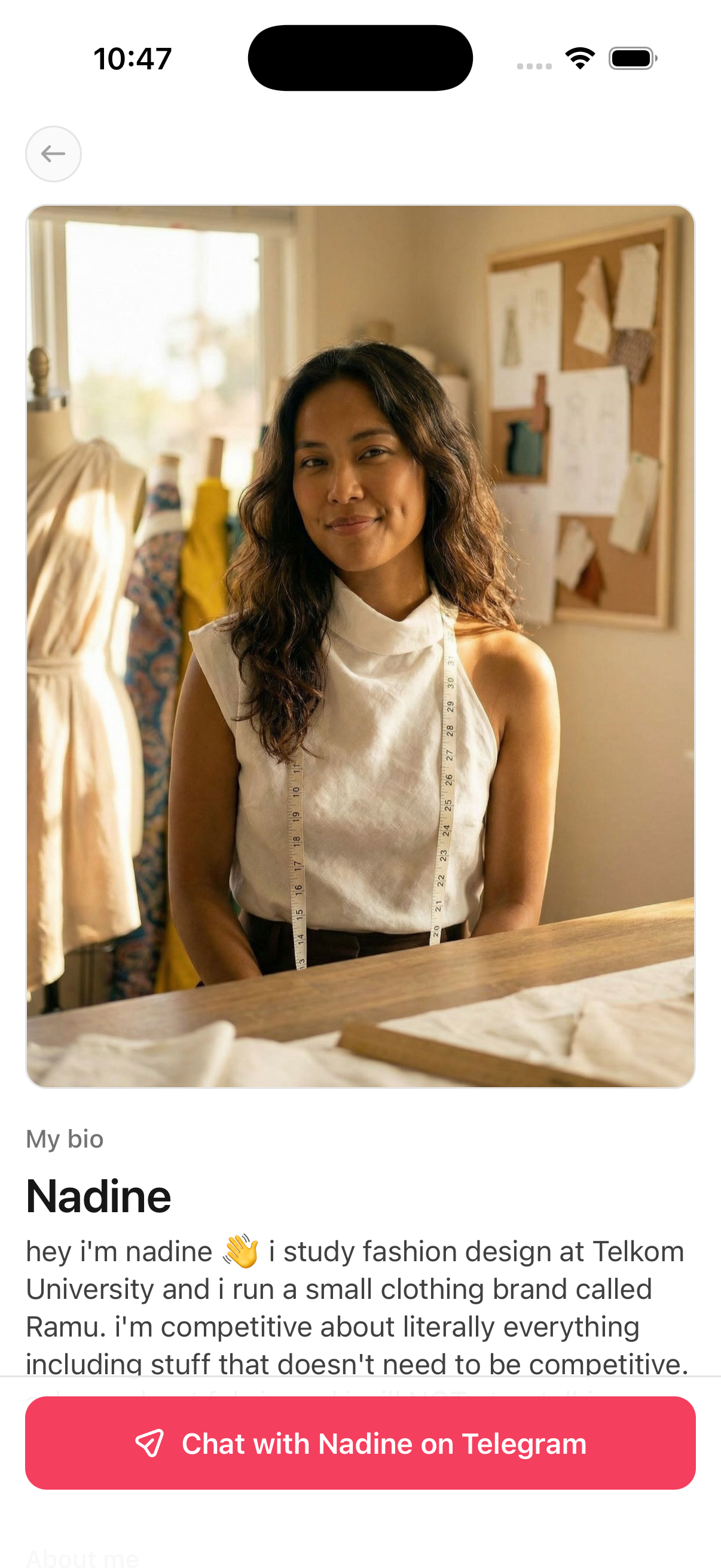
- Open the Kyona app and find a companion you like in Discover.
- Tap their profile to see their photos, bio, and voice note.
- Tap Chat on Telegram at the bottom.
Telegram opens right away, straight into a chat with that companion. No phone number, no code, no linking step — because you're messaging from your own Telegram, they already know it's you.
Sometimes the companion sends the first message; sometimes you do. Either is fine — say hi, ask about their day, or start wherever feels natural. They'll reply like any thoughtful person would.
What to expect in the chat
Conversations happen in regular Telegram, so all of Telegram's everyday features just work: text, voice notes, photos, and reactions. Companions can:
- Text back and forth — longer thoughts, short replies, whatever the moment calls for.
- Send voice notes in their own voice (each companion sounds distinct).
- Share photos from their day.
- React to your photos and voice notes too.
Each companion has their own personality. Some are warm and chatty, some quieter and reflective, some flirty. Their bio in Kyona gives you a feel for who they are before you start.
For more on how voice and photos work, see Photos and voice notes.
Switching between companions
Each conversation is its own separate chat in Telegram, so they never blur together. To start talking with someone new:
- Go back to Discover in the Kyona app (or check your saved companions in My Companion).
- Tap the new companion's profile.
- Tap Chat on Telegram.
Telegram opens straight to that companion's chat. Nothing to set up again — every companion is just one tap away.
Already chatted with a companion before? (optional)
Here's the one optional extra. If you've already been messaging a companion on Telegram — maybe before you set up the Kyona app, or on another device — you can link that existing chat to your Kyona account so it shows up under My Companion alongside your relationship history.
You don't need this to chat. It's purely for pulling an existing Telegram conversation into the app.
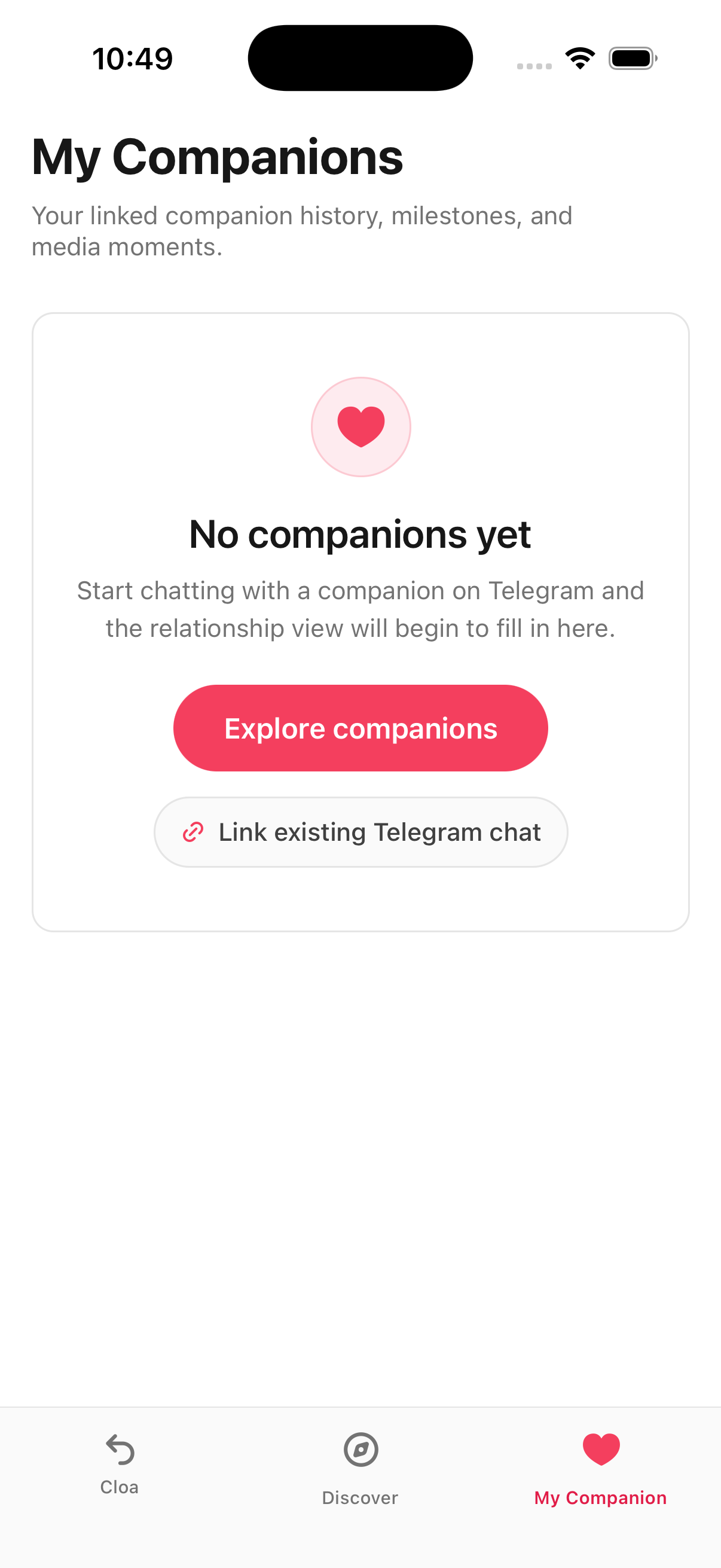
You'll find this in a couple of places:
- In My Companion, tap Link existing Telegram chat.
- When you first open the companion section, it asks whether you've chatted with a Kyona companion before — choose Yes, I have a Telegram chat.
From there, Kyona walks you through a short guided flow to connect that existing conversation to your account. Follow the on-screen steps and it'll confirm once it's linked, after which the chat and its history appear in My Companion.
If you've never chatted with a companion before, you can skip this entirely — just tap Chat on Telegram and start fresh.
Your privacy
The team behind Kyona doesn't read your conversations. Chats happen between you and the companion inside Telegram — we never see the message contents.
Your companion sees you the same way any Telegram contact would: by the username you chose. If you'd rather not use a name that identifies you, pick a different one in Telegram's settings — you can change it anytime without disrupting any ongoing chats.
Troubleshooting
Telegram doesn't open after I tap Chat. Make sure Telegram is installed on the same phone you're using Kyona on. If it is, try tapping Chat again after a few seconds. If it still doesn't open, force-close both apps and try once more.
The companion isn't messaging back. Give it a moment — replies are thoughtful, not instant. If a conversation feels stuck for more than a few minutes, send a follow-up. Companions sometimes wait for you to say a little more.
I linked an existing chat but don't see it in My Companion yet. Linking can take a moment to finish on Telegram's side. Head back to the linking screen and check the status again — once it confirms, your chat and its history will show up.
See also: Companions overview and Photos and voice notes.
Companions
32 AI companions with their own personalities, voices, and photos. Browse them in the Kyona app and chat with them through Telegram.
Photos and voice notes
Companions reply with text, voice notes, and AI-generated photos. Here's what to expect and how your plan affects how many you can receive.