
Telegram Personal
Telegram Personal is the integration that connects your own Telegram account to Kyona. Once linked, Kyona can read your chats, draft replies, summarize unread threads, and send messages on your behalf when you ask it to.
This page covers Telegram Personal only. If you want to chat with Kyona itself through Telegram, see the Telegram channel. If you want to chat with a Kyona Companion through Telegram, see Set up a companion on Telegram.
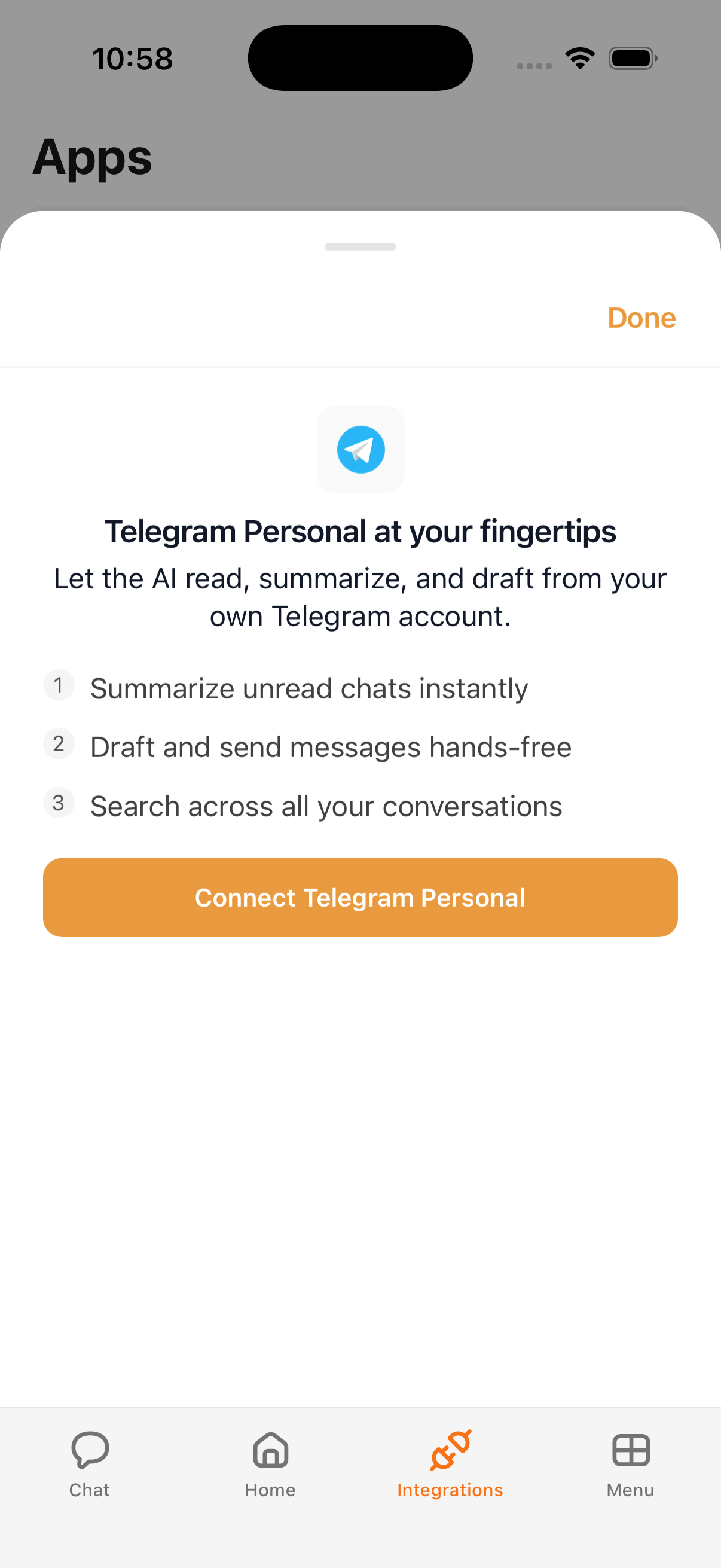
What Kyona can do with Telegram Personal
| Capability | What it does |
|---|---|
| Read messages | Kyona can open any of your Telegram chats and read recent messages so it can answer questions about them. |
| Send messages | Kyona can send a message to any of your Telegram contacts or group chats on your behalf. |
| Summarize unread | Kyona can scan unread conversations and produce a short summary of what you've missed. |
| Search across chats | Kyona can find a person, message, or file across your Telegram history. |
Telegram Personal vs Telegram channel vs Companion Telegram
These three are easy to confuse, so it helps to keep them straight.
| Surface | What it is |
|---|---|
| Telegram Personal (this page) | Kyona is connected to your Telegram account and can act on your behalf inside it. |
| Telegram channel | You chat with Kyona through @cloahq_bot in Telegram, the same way you'd chat in the Kyona app. |
| Companion Telegram | A specific Kyona Companion has its own Telegram account, and you message that account directly. |
Telegram Personal is the only one that gives Kyona access to your own Telegram account.
Example prompts
Once Telegram Personal is connected, you can ask Kyona things like:
- "Catch me up on the chat with mom from the last day."
- "Send Alex a quick 'running 10 minutes late' on Telegram."
- "Summarize my unread Telegram conversations."
- "Find the address Sarah sent me on Telegram last week."
How to connect
- Open the Kyona app.
- Go to Menu → Integrations.
- Tap Telegram Personal.
- Enter the phone number associated with your Telegram account.
- Telegram sends a confirmation code to your Telegram app. Enter that code in Kyona.
- If you have a two-step password enabled on Telegram, enter that password to finish.
Once the connection is made, Telegram Personal will show as connected in your Integrations list.
Recommended permission settings
Each Telegram Personal capability has its own permission, with three options: Off, Ask First, or Always. You can change these any time from Menu → Integrations → Telegram Personal.
| Capability | Recommended setting | Why |
|---|---|---|
| Read messages | Always | Reading is needed for summaries, catch-ups, and answering questions about your chats. There's no outbound action involved. |
| Send messages | Ask First | Sending is outbound and irreversible. Ask First lets you review the draft and recipient before anything leaves your account. |
| Summarize unread | Always | Falls under reading. Safe to allow without prompting. |
| Search across chats | Always | Read-only lookup across your existing messages. |
As you build trust with how Kyona handles drafts, you can move Send messages to Always for faster replies.
What Kyona stores about your Telegram
Kyona stores the Telegram Personal connection itself, encrypted, so it can act on your behalf in future conversations. Kyona does not keep a copy of your Telegram history. Messages are read live when you ask a question about them, used to answer, and not archived.
For more on how Kyona handles connected accounts, see Privacy and your data.
Disconnecting
To remove Telegram Personal from Kyona:
- Open the Kyona app.
- Go to Menu → Integrations.
- Tap Telegram Personal.
- Tap Disconnect.
Kyona loses access to your Telegram account immediately and will no longer be able to read or send messages on your behalf. Your Telegram account itself is untouched, and all your existing chats remain in Telegram.
See also
- Telegram channel — chat with Kyona through
@cloahq_bot. - Set up a companion on Telegram — message a Kyona Companion in Telegram.
- Understanding permissions — how Off, Ask First, and Always work across every integration.
- Privacy and your data — what Kyona stores about your connected accounts.