
Get the app
Kyona is a free download on iPhone and Android. Sign in with Google or email — no waitlist, no verification codes.
Downloading the app
Kyona runs on iOS and Android. Both versions are kept in sync and ship the same features.
- iOS — Download from the App Store
- Android — Download from Google Play
Signing in
When you open Kyona for the first time, you'll see a splash screen with two sign-in buttons and a small "Other options" link beneath them. There is no waitlist and no verification step — once you choose a method, you go straight into the app.
Continue with Google (recommended)
Tap the white Continue with Google pill at the top. Kyona uses your Google account name and profile photo to set up your account, so there's nothing else to fill in. You'll land on the Home tab immediately.
This is the fastest path, and it's the option most people pick.
Continue with Email
Tap the dark Continue with Email pill below it. You'll enter your email address first. If you've signed in before, Kyona just asks for your password and you're in. If it's a new account, you'll pick a name and a password (at least six characters) — the name is how Kyona addresses you in conversations, and you can change it later in Settings.
The "Other options" link below the two buttons currently opens the same email flow. Additional sign-in providers will show up there as they roll out.
First thing you'll see
After signing in, you land on the Home tab. Kyona greets you by name based on the time of day and shows an overview card with a few suggested next steps. The first time you open Home, you'll also see a prompt to connect your apps so Kyona can start pulling in real context.
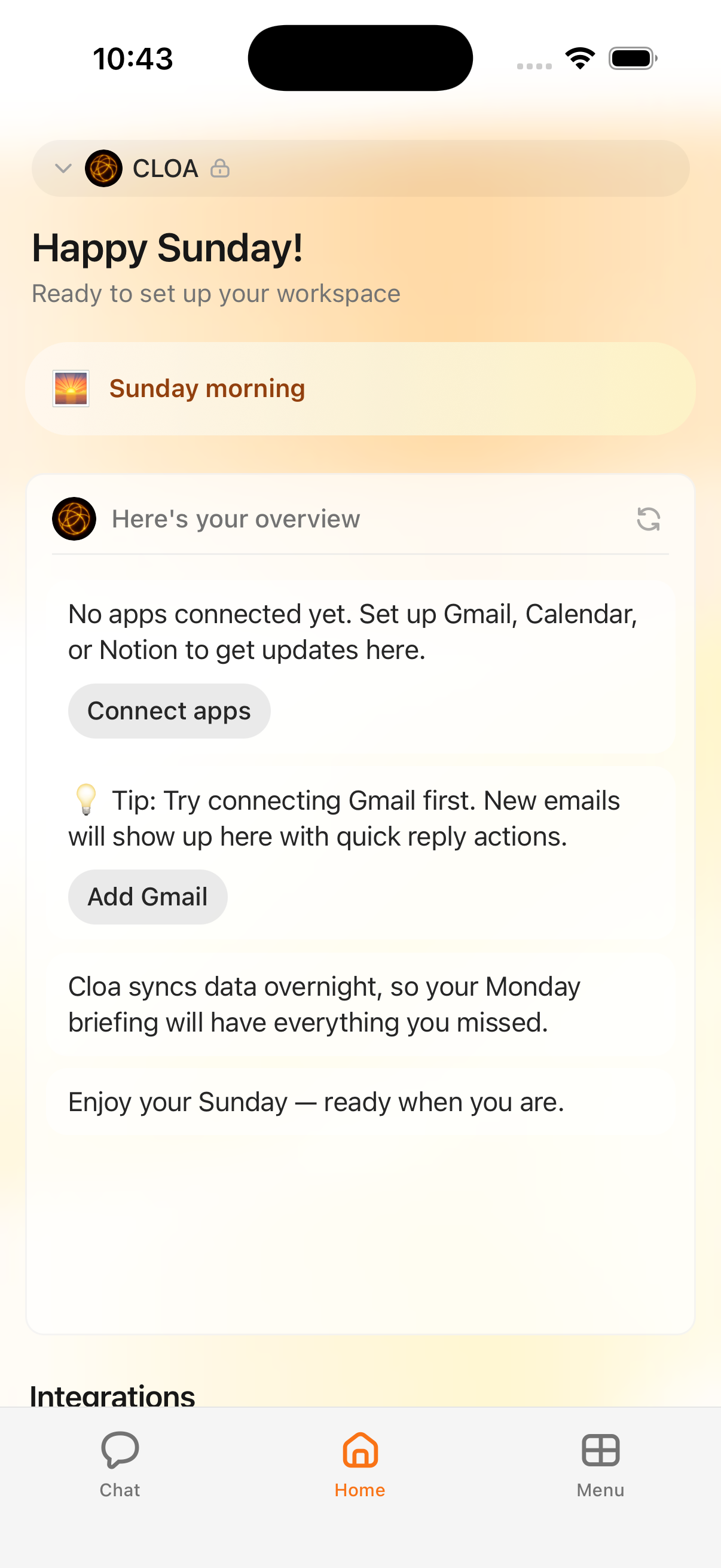
The mobile app layout
The bottom of the screen has four slots. Three of them are fixed — Chat, Home, and Menu — and the fourth slot is dynamic: it shows whichever app you most recently opened from the Menu, so the thing you use most stays one tap away.
Chat
Your conversation hub. The pinned Main Chat thread sits at the top, with any other threads you've started listed below it. Use the search bar to find a past conversation, or tap the compose button to begin a new one.
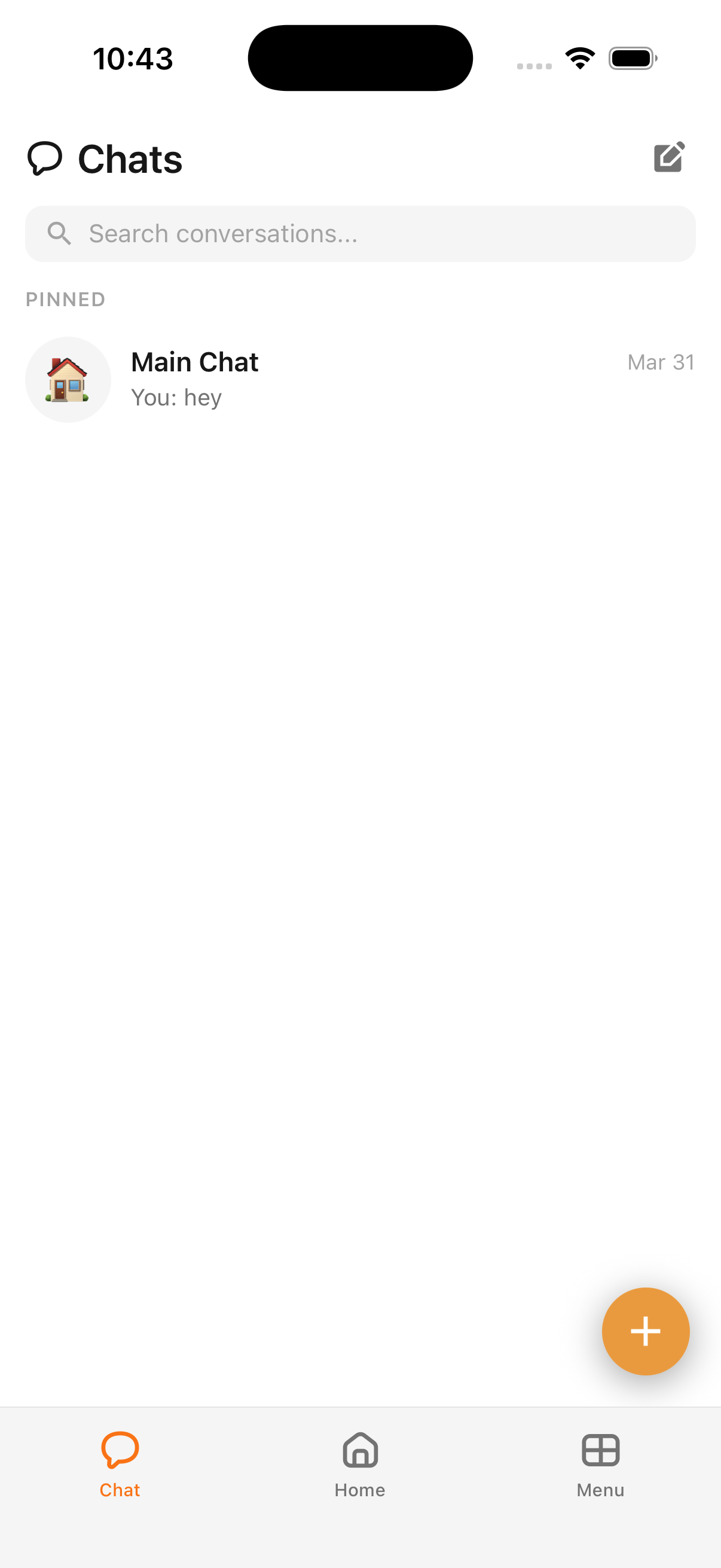
Home
The dashboard you saw right after signing in. Greeting, briefing card, and shortcuts to whatever Kyona thinks you'll want next.
Menu
The grid icon on the right opens the Menu popup, which is your jumping-off point to every other part of Kyona. The popup has seven items:
- Companion — chat with one of Kyona's companions, each with their own personality
- Files — your personal file storage inside Kyona
- Spaces — connected views of your other tools (Notion, Drive, and so on)
- Integrations — connect Gmail, Calendar, Slack, Notion, and more
- Channels — reach Kyona from outside the app through Telegram and other messengers
- Automations — reminders, routines, and scheduled actions Kyona runs for you
- Settings — profile, plan, notifications, and account preferences
Whichever item you open most recently from this Menu also takes over the fourth tab slot in the bottom bar.
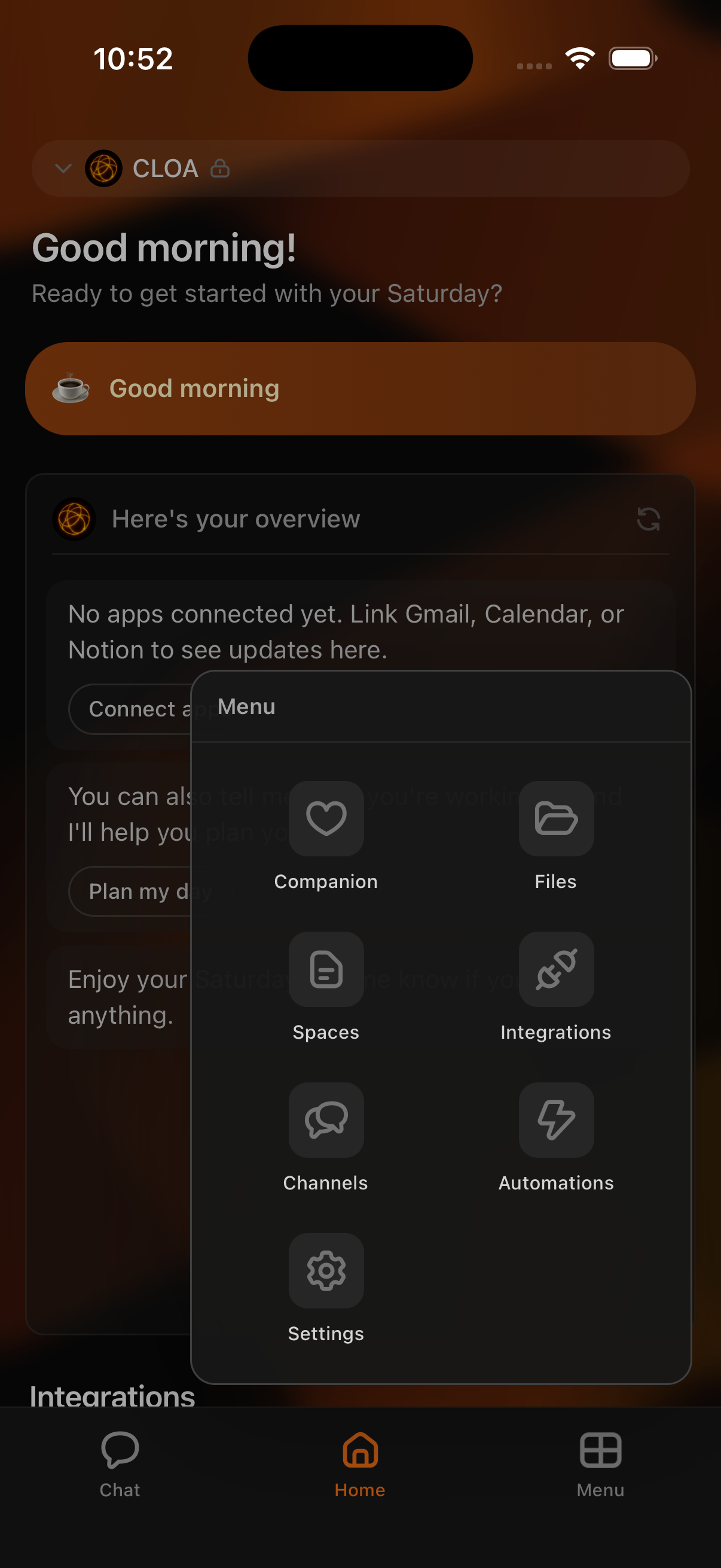
The dynamic fourth slot
The slot to the right of Home swaps in the last Menu item you opened. If you just used Automations, that's what's pinned there. Open Spaces next, and Spaces takes the slot. It's a small detail, but it keeps your most-used surface within reach without rearranging anything yourself.
Permissions you'll be asked for
Kyona asks for system permissions only when it needs them, and each prompt comes with the reason it's needed.
- Notifications — iOS asks for this right after you finish signing in. Kyona uses notifications for reminders, completed actions, and follow-ups from connected apps. You can change this later in your phone's Settings.
- Microphone — requested the first time you tap the mic button in chat, or the first time you start a voice call. Kyona uses the microphone for voice messages and live voice conversations only.
- Photos — requested the first time you attach a photo to a message. Kyona only reads the photos you explicitly pick.
If you decline a permission, the related feature is paused until you grant it. Nothing else stops working.
Next steps
- Where Kyona lives — a quick tour of the surfaces Kyona shows up on
- Connect your apps — link Gmail, Calendar, Notion, and more so Kyona has real context to work with
Coming soon
- Apple Sign-In — sign in with your Apple ID. Not available yet; for now, use Google or email.