
Automations
Automations are routines Kyona runs for you — reminders, daily check-ins, weekly summaries, and any other action you'd want to happen on a schedule.
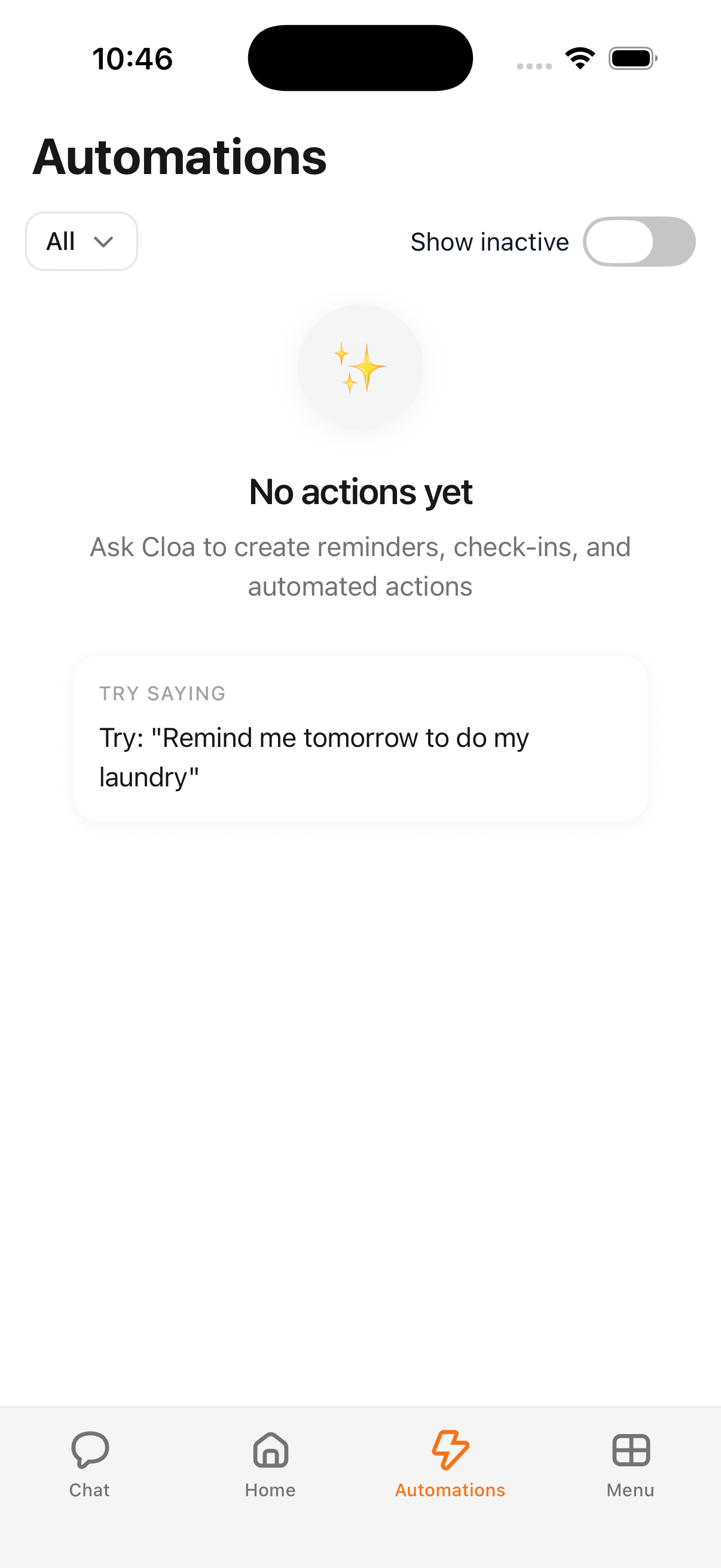
You reach the Automations screen from Menu → Automations. From here you can browse everything Kyona is running for you, open any single routine to see how it's going, or pause and remove the ones you no longer need.
The two kinds of automations
Kyona supports two kinds of automations, and the filter at the top of the screen lets you switch between them.
One-time
A one-time automation is a single scheduled action — it fires once at a specific moment and then it's done. Use this for reminders, single check-ins, or any task you only need to happen once.
- "Remind me to call mom on Sunday at 5pm"
- "Tomorrow morning, draft a birthday message for Sarah"
- "In two hours, check if my deployment finished"
Recurring
A recurring automation fires on a schedule you describe — every morning, every Monday, the first of each month, or any cadence that makes sense to you. Use this for daily briefs, weekly summaries, and routines you want Kyona to keep handling without being asked again.
- "Every weekday at 8am, brief me on my calendar"
- "Every Monday morning, send me a recap of last week"
- "On the first of each month, summarize my Notion tasks"
The filter is labeled All, One-time, and Recurring, so you can narrow the list down to whichever kind you want to look at. A Show inactive toggle lets you bring paused and finished automations back into view.
Creating an automation
The fastest way to set one up is to describe it in chat. Open any conversation with Kyona and say what you want, when you want it, and how often.
Kyona reads your message, figures out the schedule and the steps, and shows you a confirmation card with the details. Tap approve and the automation appears on the Automations screen. Examples that work well:
- "Remind me to take out the trash every Tuesday at 9pm"
- "Every weekday at 7am, tell me the weather and my first meeting"
- "Send me a weekly recap of my Strava activity every Sunday evening"
- "Every morning at 8am, prep me for my day and pull anything urgent from my email"
When the Automations screen is empty, it shows a few example prompts you can tap to start a chat with that request pre-filled — but most people find it easier to just say it out loud in chat themselves.
The Automations screen
Every automation you've created shows up here, sorted by what's coming up next. Each row shows the name, a short description of what it does, and a status indicator so you can tell at a glance whether it's currently active or paused.
Use the All / One-time / Recurring filter at the top to narrow the list. Tap any row to open the detail screen for that automation.
Automation detail
The detail screen is where you see everything about a single automation:
- Status — active, paused, scheduled, completed, or failed
- Created — when you set it up
- Schedule — whether it's one-time or recurring, and when it runs next
- Steps — the actions it performs, when it has more than one
- Last run — for one-time automations that have finished, a summary of how the run went
From this screen you can pause an automation to stop it from firing without losing the routine, resume it later, or delete it entirely if you no longer need it.
You can also manage automations through chat. Try "show me my automations," "pause the Monday recap," or "delete the laundry reminder."
Automations that work with your connected apps
When an automation involves an app you've connected — sending an email, posting to Slack, creating a Notion page — it respects the permission setting you've chosen for that app.
If the app is set to Ask First, the automation will check in with you before sending, and you can approve or cancel. If it's set to Always, the automation runs the action straight through without asking. You can change this for each app from Menu → Integrations. See Permissions for the full picture.
Automations that call you
An automation can also place an outbound voice call to your phone. This is useful for routines you want delivered as a conversation rather than a notification — a 7am call that walks you through your day, a wake-up call that reads you the weather and your calendar, or a check-in call you want to receive on a regular schedule.
To set one up, describe it the same way you'd describe any other automation: "call me every weekday at 7am and brief me on my day." See Voice calls for more on how Kyona handles calls.
Coming soon: background actions
Kyona is working on background actions — the ability for an automation to run a multi-step task quietly in the background, then deliver the result when it's ready. See Background actions for the full picture of where this is headed.
See also
Discord channel
Chat with Kyona from Discord. Open a DM with the Kyona bot, link your account, and you have the same Kyona and same memory as the mobile app.
Background actions
Kyona is learning to set up routines on its own based on how you use it. Here's what proactive automations will do — and what you control today.