
App settings
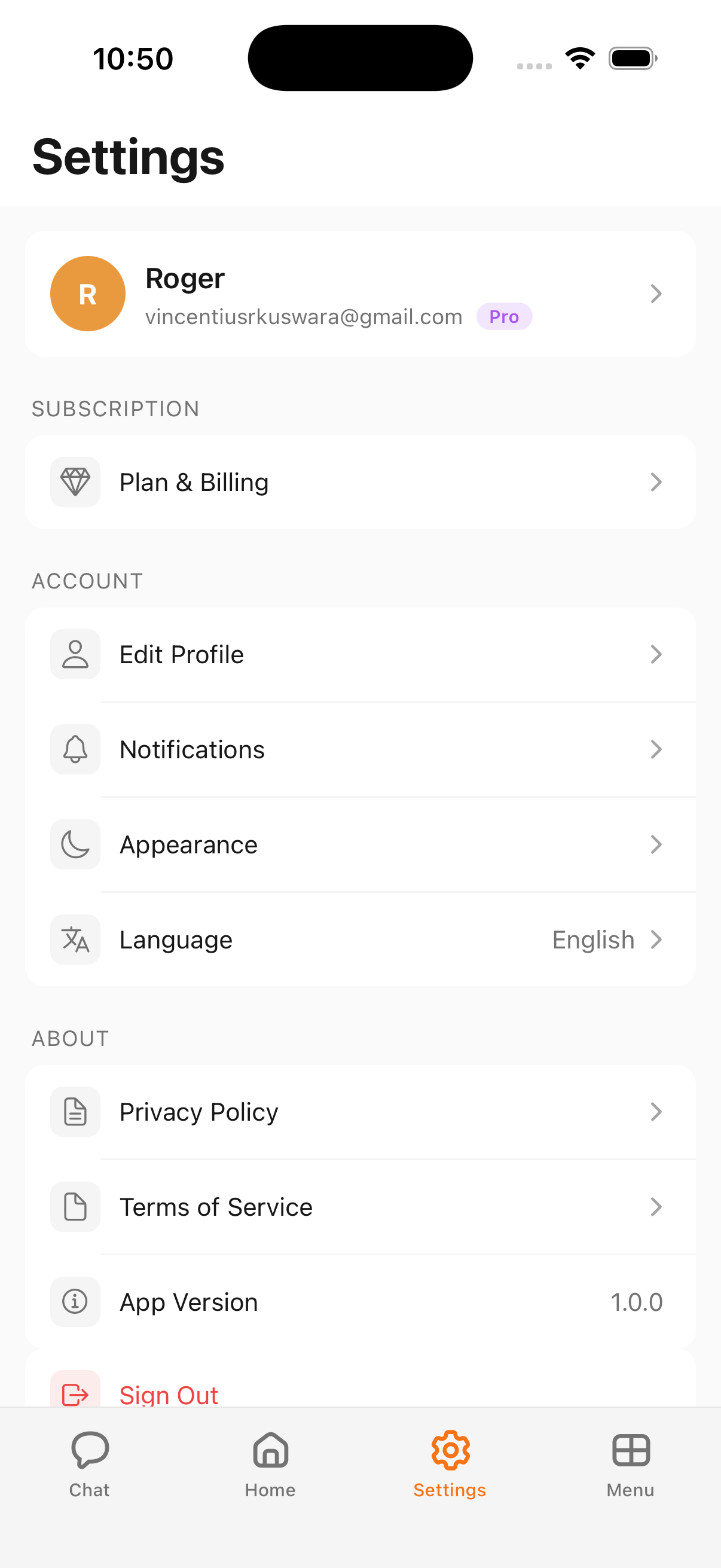
Settings is where your profile, plan, language, and account preferences live.
Getting to Settings
Settings is not a pinned tab in the bottom bar. To open it, tap the Menu button and choose Settings. If you opened Settings recently, it may also appear in the dynamic tab slot at the bottom of the screen for quick access.
Profile
The top of the Settings screen shows your profile card. It displays your avatar, your display name, the email address tied to your account, and a badge for your current plan (for example, Pro or Free). This card is a quick reference for which account is signed in.
Subscription
The Subscription section contains a single entry:
- Plan & Billing — Opens your current plan, available tiers, and billing details. Full details on plans, upgrades, downgrades, and receipts are covered in Plans and billing.
Account preferences
The Account section groups preferences tied to your individual account.
Language
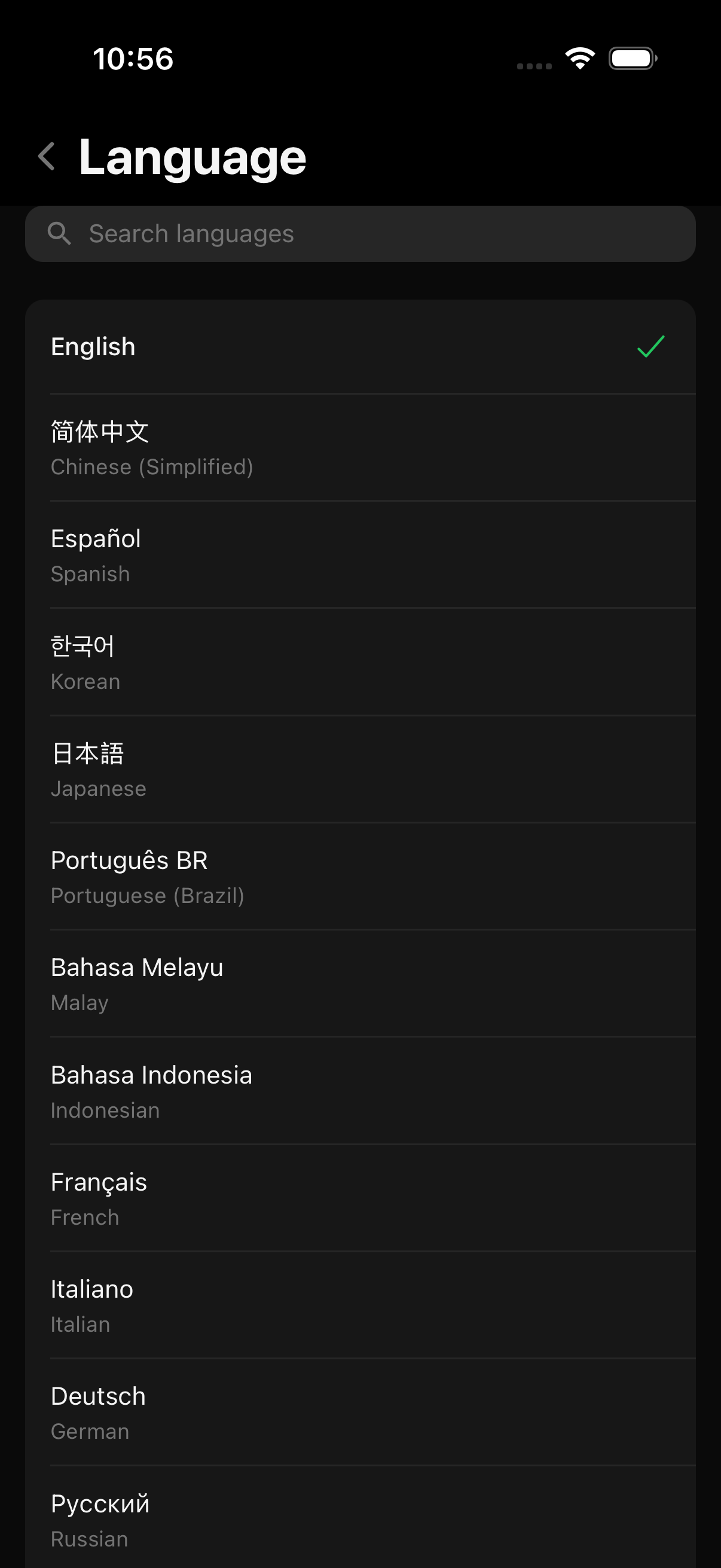
Kyona is available in 26 languages, including English, Spanish, French, German, Portuguese, Italian, Japanese, Korean, Chinese, Hindi, Indonesian, Vietnamese, Thai, Filipino, Russian, Polish, Dutch, Swedish, Norwegian, Danish, Turkish, Bengali, Tamil, Malay, Ukrainian, and more.
Tap Language to open the language picker. Choose the language you want to use across the app, and the change takes effect immediately. Your selection applies to the app interface — menus, labels, and system messages. Kyona still replies in whatever language you write to it in.
Edit profile
Coming soon. Editing your display name, avatar, and other profile details from inside the app is planned for a future release. Tapping this entry today does not open an editor. For now, the profile shown at the top of Settings reflects what was set when you created your account.
Notifications
Coming soon. A dedicated notifications screen is planned, where you will be able to control which reminders, briefings, and confirmation alerts appear on your device. Until it ships, notification behavior follows your operating system permissions for the Kyona app.
Appearance
Coming soon. A light, dark, and follow-system appearance picker is planned for a future release. Today, the app uses its default theme.
About
The About section gathers app information and the legal documents that govern your use of Kyona.
- Privacy Policy — Opens the privacy policy on kyona.app in your browser.
- Terms of Service — Opens the terms of service on kyona.app in your browser.
- App Version — Shows the version of Kyona currently installed on your device. Include this number when reporting issues or contacting support.
Sign out
The Sign out button at the bottom of Settings signs you out of your Kyona account and returns you to the sign-in screen. Your data remains stored on your account and is available the next time you sign back in on this device or another one.
Developer tools
The bottom of the Settings screen includes a small Developer section with utilities such as Test Incoming Call and Reset All Data & Sign Out. These are diagnostic tools used during testing. Most people will not need them. Reset All Data & Sign Out clears local app data on this device and signs you out, so use it only when you intend to start fresh.
Coming soon
The following entries appear in Settings today but are placeholders for upcoming features:
- Edit Profile — in-app editing of name and avatar
- Notifications — granular control over reminders and alerts
- Appearance — light, dark, and system theme picker
These items are expected in future updates. There is nothing to configure for them yet.
See also
- Plans and billing — manage your subscription, payment method, and receipts
- Privacy and your data — how Kyona stores and handles your information