
Lark
Lark is a single connection that gives Kyona access to six sub-services in your Lark workspace: Calendar, IM, Documents, Sheets (including Bitable), Drive, and Contacts. Once connected, you can ask Kyona to find a document, summarize a channel, draft a message, update a Bitable row, or pull tomorrow's meetings without switching apps.
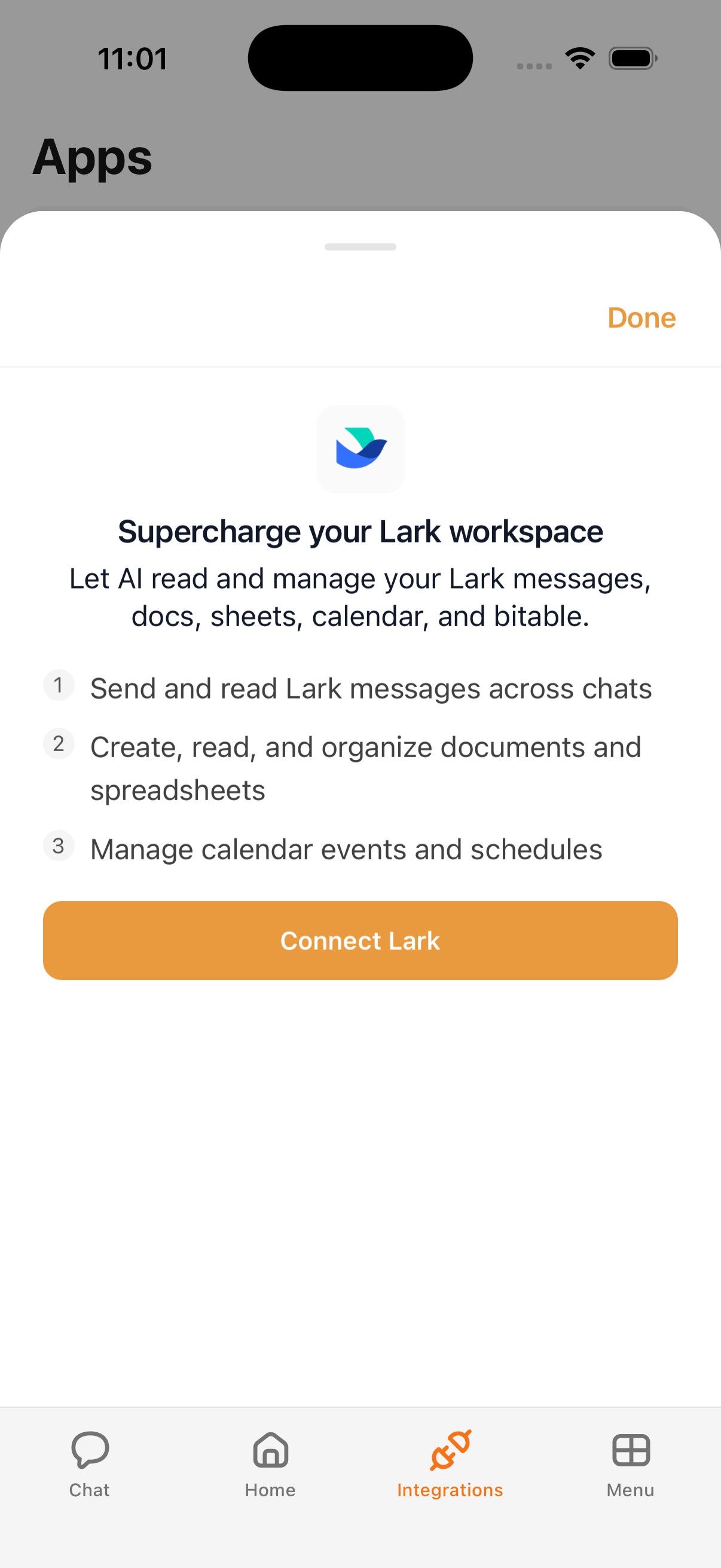
What Kyona can do with Lark
| Sub-service | What Kyona can do |
|---|---|
| Calendar | Read your schedule, create new events, and update existing ones |
| IM | Read recent channel messages and send messages to channels or people |
| Documents | Read your Lark docs and create or edit them |
| Sheets | Read and write cells in Lark Sheets, including Bitable rows |
| Drive | Search your Lark Drive, read file contents, and create or organize files |
| Contacts | Read people and department details to address messages and events |
Example prompts
Try these once Lark is connected:
"Find the Q2 product brief in Lark Drive."
"What does my Lark calendar look like tomorrow?"
"Post the launch checklist to the #release-ops channel in Lark."
"Draft a Lark doc summarizing today's standup notes."
"Update the status column in our project Bitable to 'In review' for the rows assigned to me this week."
"Add a new row to the Sprint Sheet with today's date and the items we just shipped."
How to connect
- Open the Kyona app.
- Go to Menu → Integrations → Lark.
- Tap Connect and sign in with your Lark account.
- Confirm the requested access to return to Kyona.
One connection covers all six sub-services. You don't need to connect Lark separately for Calendar, Documents, Drive, or anything else.
Recommended permission settings
Each Lark sub-service has its own controls under Integrations → Lark → Permissions, with three options: Off, Ask First, and Always. We recommend tailoring them by action type:
| Sub-service | Read actions | Write actions |
|---|---|---|
| Calendar | Always | Ask First |
| IM | Always | Ask First |
| Documents | Always | Ask First |
| Sheets | Always | Ask First |
| Drive | Always | Ask First |
| Contacts | Always | Read only |
Set anything you don't want Kyona to touch to Off. For shared or work workspaces, leave write actions on Ask First so Kyona confirms before posting in IM, editing a doc, or updating a Bitable row.
A note for workspace admins
Some Lark organizations require an admin to approve third-party apps before members can connect them. If your sign-in screen shows that Kyona is pending approval, ask your Lark workspace admin to enable Kyona for your organization. Once approved, return to Integrations → Lark and tap Connect again.
How Lark data shows up elsewhere in Kyona
- Chat — Kyona cites the source when it pulls a Drive file, IM thread, doc, Sheet, or Bitable row, so you can tap through to the original in Lark.
- Automations — Lark can run inside scheduled or triggered automations. For example, a Monday morning automation can post your week's calendar to a project channel and update a status sheet at the same time.
- Voice — During voice calls, Kyona can read out your next Lark meeting or summarize a recent channel thread without you opening the app.
Disconnecting
To disconnect, go to Menu → Integrations → Lark and tap Disconnect. Kyona removes its access to all six sub-services at once. Any automations that depend on Lark will pause until you reconnect.