
Channels
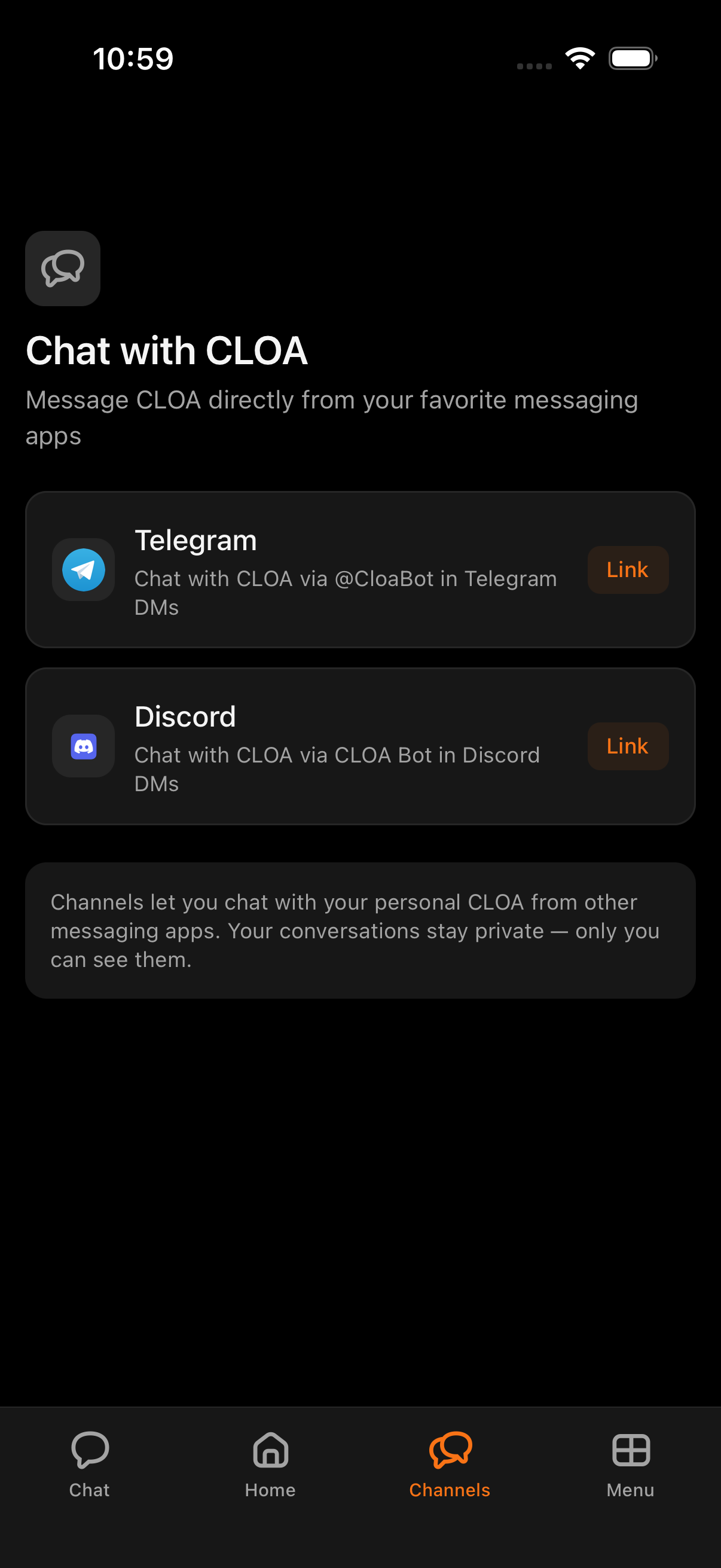
Channels are the messaging apps where you can chat with Kyona outside the mobile app. Today that means Telegram and Discord. Slack and WhatsApp are on the way.
A channel is just another front door to the same Kyona. You can open the Kyona app on your phone, or you can send a message to Kyona's bot inside Telegram or Discord, and you'll be talking to the same assistant either way.
The same Kyona, on whichever messaging app you prefer
Every channel shares memory with the mobile app. A conversation you have with Kyona on Telegram shows up in your in-app history the next time you open the app. A note you mention to Kyona in the app is available the next time you message Kyona from Discord.
There is no "Telegram Kyona" or "Discord Kyona." There is one Kyona, and channels are the different surfaces you can reach it from.
Channels vs Integrations
This is the distinction that matters most, and it's the one people most often mix up.
| Channel | Integration | |
|---|---|---|
| What it is | A messaging app you use to chat with Kyona | An account at another service that Kyona can act on for you |
| Who acts on whom | You message Kyona via a bot | Kyona reads or acts inside your account at another service |
| Examples | Telegram, Discord | Gmail, Notion, Google Calendar, Telegram Personal |
| Where to find it | Menu → Channels | Menu → Integrations |
A worked example with Telegram, since both a channel and an integration share the name:
- The Telegram channel is Kyona's own bot,
@KyonaBot. You send it the link command from the app, and from then on you can chat with Kyona from inside Telegram. Kyona never sees your personal Telegram chats. - Telegram Personal is an integration. You give Kyona access to your own Telegram account so it can read your messages, summarize chats, or draft replies on your behalf. It has nothing to do with the Telegram channel.
The two are unrelated. You can use one, the other, both, or neither.
How to set up a channel
The flow is the same for every channel.
- Open the Kyona app.
- Go to Menu → Channels.
- Pick the channel you want to set up.
- Kyona generates a one-time link code and gives you a button that opens the channel's bot.
- In the bot's direct message, paste the code Kyona gave you.
- The bot confirms, and the channel is linked.

One-time setup per channel
Linking a channel is a one-time step. Once you've completed the flow for Telegram or Discord, you can message Kyona from that channel any time, and Kyona will recognize you and pick up where you left off.
You don't need to re-link the same channel on a new device. The link is tied to your Kyona account, not to the device you used to set it up.
What works in channels
Inside a channel, you can:
- Send Kyona text messages, the same way you'd chat in the mobile app.
- Send voice notes — Kyona will transcribe them and reply.
- Use the bot's commands (such as
/startand/help) for setup and account actions.
What doesn't work in channels yet:
- Voice calls. Real-time calls with Kyona stay in the mobile app for now.
Everything Kyona can normally do in chat — answer questions, draft messages, check your calendar, pull together a daily briefing — works in channels too, including any integrations you've connected.
Disconnecting a channel
To unlink a channel:
- Open the Kyona app.
- Go to Menu → Channels.
- Tap the channel you want to remove.
- Tap Disconnect.
Kyona stops accepting messages from that channel right away. Your account and your chat history stay intact, and you can re-link the channel any time by repeating the setup flow.
The channels available today
- Telegram — chat with Kyona through
@KyonaBot. - Discord — chat with Kyona through Kyona's Discord bot in a direct message.
Coming soon
- Slack — chat with Kyona in a Slack DM.
- WhatsApp — chat with Kyona in WhatsApp.
See also
- Where Kyona lives — every place Kyona shows up across your devices and apps.
- How Kyona remembers — how Kyona keeps context shared across the mobile app and every channel.