
How permissions work
Every app you connect to Kyona has its own permission settings. You decide what Kyona can do on its own and what it should ask about first.
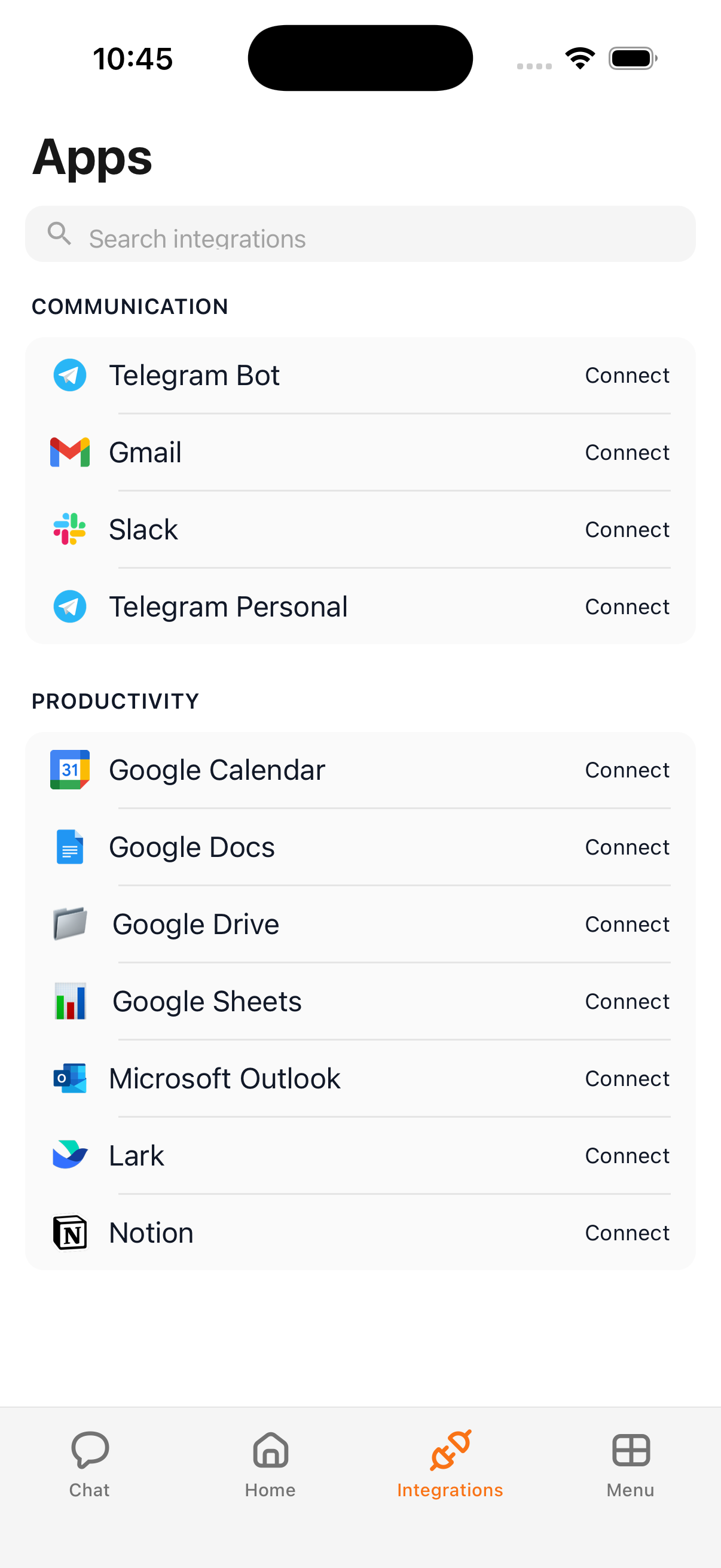
The three permission settings
Each app you connect can be set to one of three values.
| Setting | What happens | Best for |
|---|---|---|
| Off | Kyona can't perform this action at all. | Anything you'd rather keep off-limits, even after connecting the app. |
| Ask First | Kyona drafts the action, shows you a preview, and waits for your tap to approve. | Actions you want to review every time, like sending an email or deleting a file. |
| Always | Kyona runs the action without asking. | Routine actions where speed matters, like checking your calendar or pulling up a document. |
You can change any of these settings at any time. Changes take effect immediately.
Per-action permissions
Each app is made up of several actions, and you can set a different value for each one. Reading something is treated separately from sending or deleting something.
For example, in Gmail you might choose:
- Read set to Always, so Kyona can pull up your latest emails without interrupting you
- Send set to Ask First, so you always see the draft before it leaves your outbox
- Delete set to Off, so Kyona never moves a message to trash on its own
This means a single app can be both fast and cautious at the same time. Kyona handles the routine reads in the background, then pauses to check with you before anything that changes your account.
How Ask First works
When an action is set to Ask First, Kyona never acts on its own. Instead, it shows you a preview card directly in the chat and waits for you.
A preview might look like this:
- Kyona says it's about to send an email to Sarah, shows you the subject line and the full body, and offers Approve and Deny buttons. Nothing leaves your account until you tap Approve.
- For a calendar event, Kyona shows the title, the date and time, and the people invited before adding it to your schedule.
- For a file change, Kyona shows the name of the file and what's about to happen to it.
If you tap Deny, the action is cancelled and nothing changes on the connected service. You can also edit the draft in chat first, then approve the updated version.
Connecting an app
Connecting an app uses the standard sign-in flow you've seen on other apps. When you tap Connect on Gmail, Google Calendar, or any other service, you're taken to the service's own sign-in page — Sign in with Google, Sign in with Microsoft, and so on.
You sign in directly with the service, not with Kyona. You'll see a clear list of what Kyona is asking for access to inside that app — for example, "view and send email" or "manage your calendar." You approve that list, and the service hands the connection back to Kyona.
Kyona never sees your password. Your sign-in stays between you and the service.
Disconnecting
To disconnect an app, open Menu → Integrations, tap the app, and tap Disconnect.
Kyona loses access to that service immediately. The connection is removed on Kyona's side, and Kyona can no longer read or change anything in that app.
Your data on the service itself stays untouched. Your emails, calendar events, files, and messages remain exactly where they are. You can reconnect at any time.
Changing settings later
You can change any app's permission settings any time after connecting:
- Open the Kyona app.
- Tap Menu → Integrations.
- Tap the app you want to adjust.
- Tap Permissions.
- Set each action to Off, Ask First, or Always.
Changes take effect right away. The next time Kyona goes to use that action, it follows the new setting.
What Kyona never sees
A few things stay completely outside Kyona, no matter which apps you connect or which settings you choose:
- Your passwords. You sign in to each service on its own page. Kyona is never shown your password and has no way to store one.
- Your other credentials. Two-factor codes, recovery keys, and any sign-in details belong to you and the service, not to Kyona.
- Data from apps you haven't connected. Kyona can only see the apps you've turned on. Everything else stays invisible to it.