
Gmail
Connecting Gmail lets you ask Kyona to write and send emails on your behalf. Reading your inbox, searching, and drafting replies are coming soon — this page covers what works today and what's on the way.
What Kyona can do with Gmail today
| Capability | What it means |
|---|---|
| Send | Write a new email and send it — once you approve, or directly if you allow it |
Tell Kyona what to say and who to send it to, and it composes the message and sends it for you.
Coming soon for Gmail
These are on the way. Until they arrive, the rest of Kyona still works — your calendar, documents, and other connected apps are all available now.
| Capability | What it will do |
|---|---|
| Read | Open your inbox and individual messages |
| Search | Find emails by sender, subject, content, or date |
| Draft | Compose replies and save them for your review |
| Organize | Sort, label, and archive emails for you |
Example prompts
Once Gmail is connected, try asking Kyona to send a message:
"Email the team that standup is moving to 3pm today."
"Send a quick note to Sarah letting her know I'll have the report by Friday."
"Email the building manager to ask when the plumber is coming."
Asking Kyona to read, summarize, or draft from your inbox will start working once those capabilities arrive.
How to connect
- Open the Kyona app.
- Tap Menu → Integrations → Gmail.
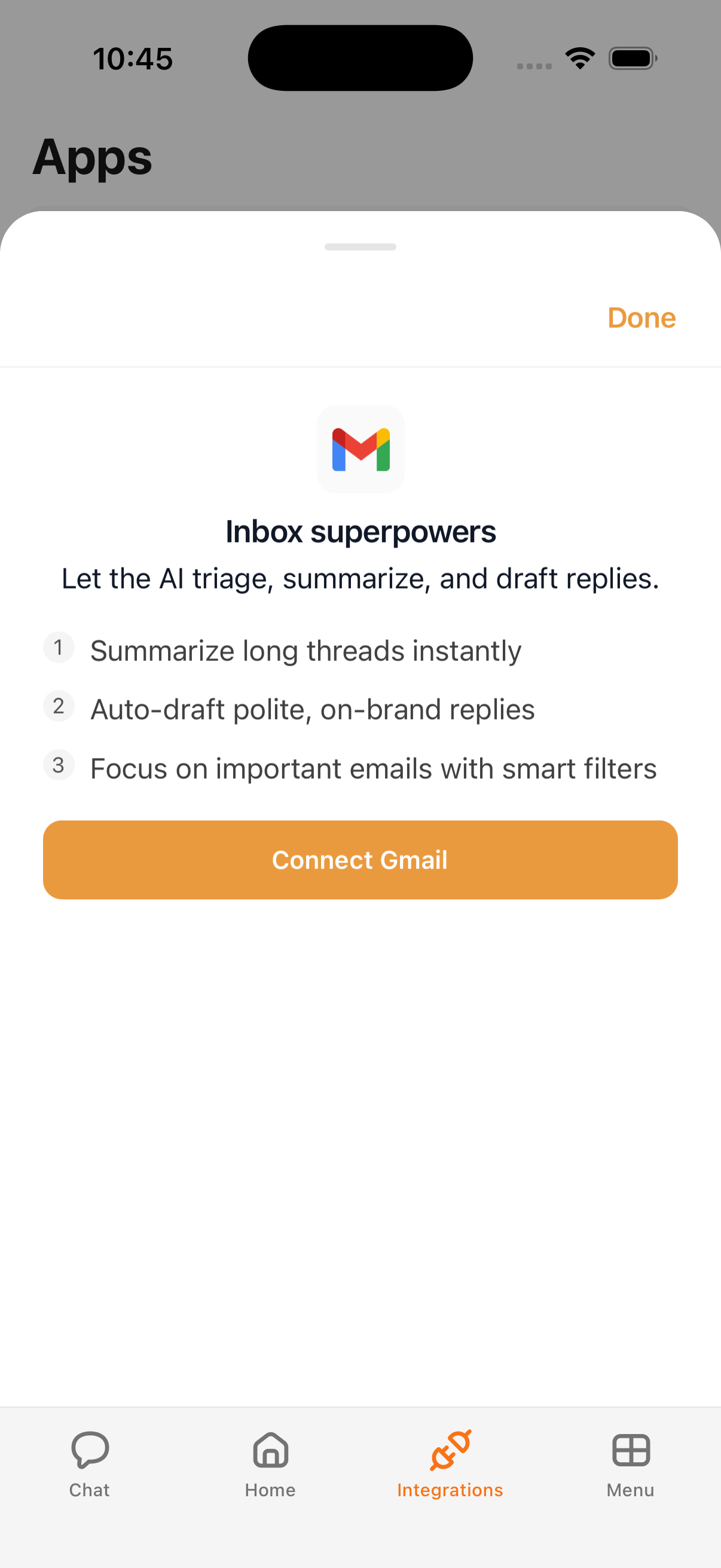
- Review the Gmail connect sheet describing what Kyona can do.
- Tap Connect, then complete the standard Sign in with Google flow.
- Approve the requested access on Google's screen to finish the connection.
Once connected, the Gmail row in your Integrations list shows the account you signed in with.
Permission setting
Sending is the capability available today, so it has one setting — Off, Ask First, or Always:
| Capability | Suggested setting | Why |
|---|---|---|
| Send | Ask First | Kyona shows you the message and waits for your tap before it goes out |
Set it to Always if you'd rather Kyona send without checking each time, or Off to pause sending entirely. More Gmail settings will appear here as reading, drafting, and organizing arrive.
You can change this anytime from Menu → Integrations → Gmail.
How Gmail works with the rest of Kyona
Today, Kyona can send email as part of a bigger request — for example, after checking your calendar, it can send a recap to a colleague. As reading and drafting arrive, your inbox will also feed into your daily brief and automations.
Disconnecting
To disconnect Gmail:
- Go to Menu → Integrations → Gmail.
- Tap Disconnect.
- Confirm when prompted.
Disconnecting removes Kyona's access to your Gmail account. Any emails Kyona sent stay in your sent folder — only Kyona's ability to reach Gmail is removed. You can reconnect anytime by following the steps above.