
Google Workspace
Kyona supports 17 services across the Google family. Gmail and Google Calendar have their own dedicated pages because they sit at the center of most daily workflows. This page covers the rest, from Drive and Docs through to Search Console and Blogger.
Each Google service is its own connection inside Kyona. They all share the same Sign in with Google flow, but you connect them one at a time and grant permission per service.
The full list
- Gmail — see /guide/connect-your-apps/gmail
- Google Calendar — see /guide/connect-your-apps/google-calendar
- Google Drive — work with the files Kyona creates for you (browsing and searching your full Drive is coming soon)
- Google Docs — read, summarize, and edit documents
- Google Sheets — read, analyze, and update spreadsheets
- Google Slides — read, create, and edit presentations (deeper editing coming soon)
- Google Tasks — view and update your task lists
- Google Contacts — search your contacts and pull phone or email details
- Google Forms — create forms, edit questions, and read responses
- Google Meet — schedule and join meetings
- Google YouTube — playlists, watch history, and video details
- Google Chat — send messages and react in your spaces (reading message history is coming soon)
- Google Fitness — reading your activity data is coming soon; to track activity today, connect Strava
- Google Classroom — view classes, assignments, and announcements, for students and teachers
- Google YouTube Analytics — for creators, view video performance
- Google Search Console — for site owners, check search performance and indexing
- Google Blogger — for bloggers, read, draft, and publish posts
How connecting works
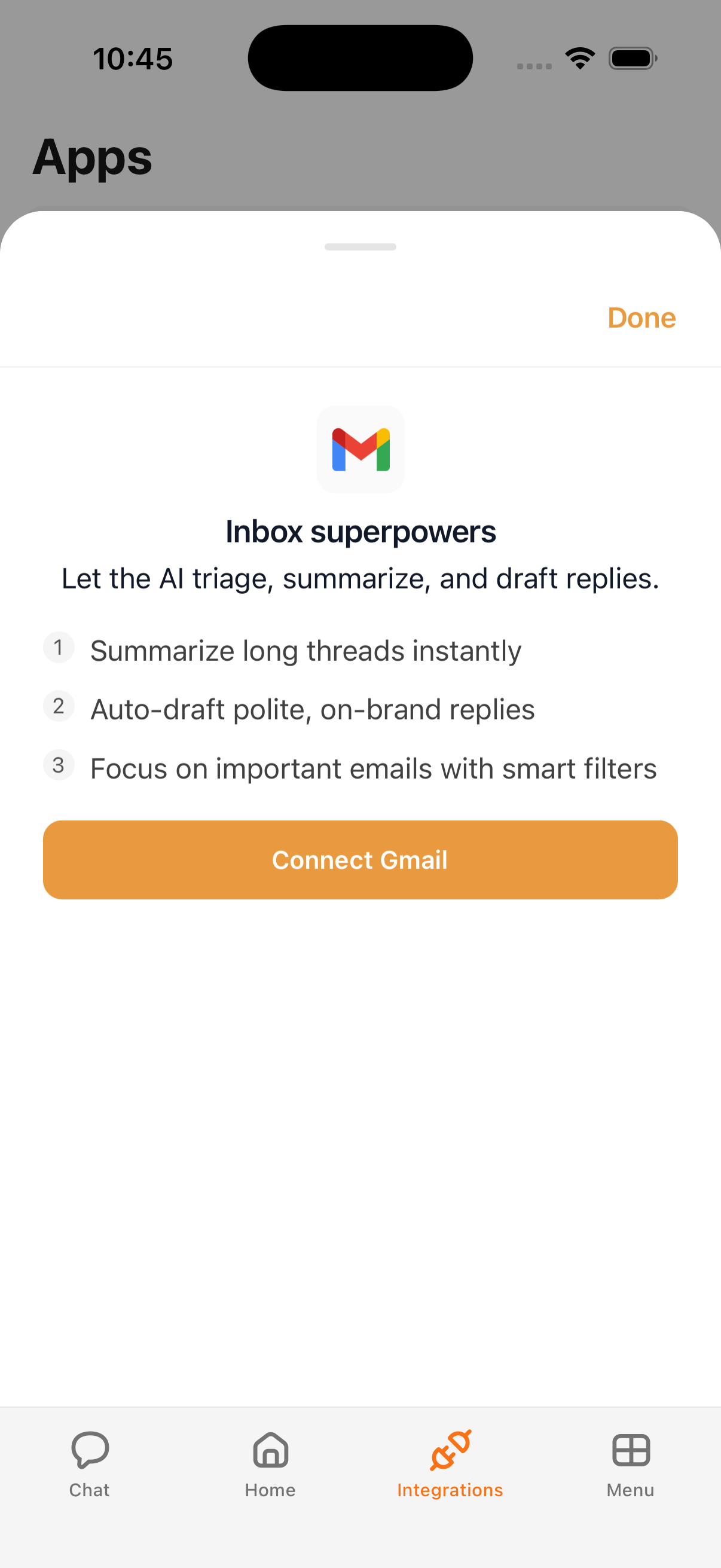
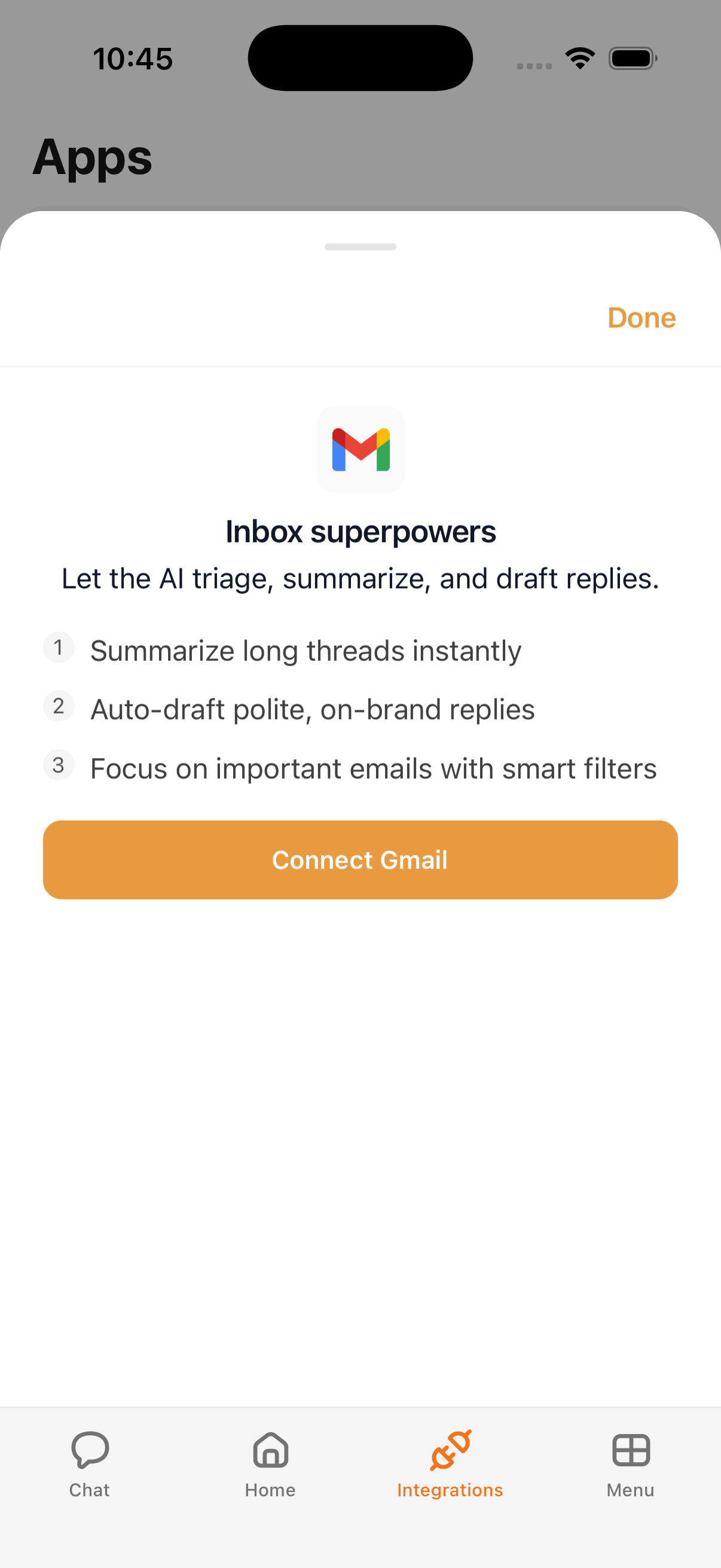
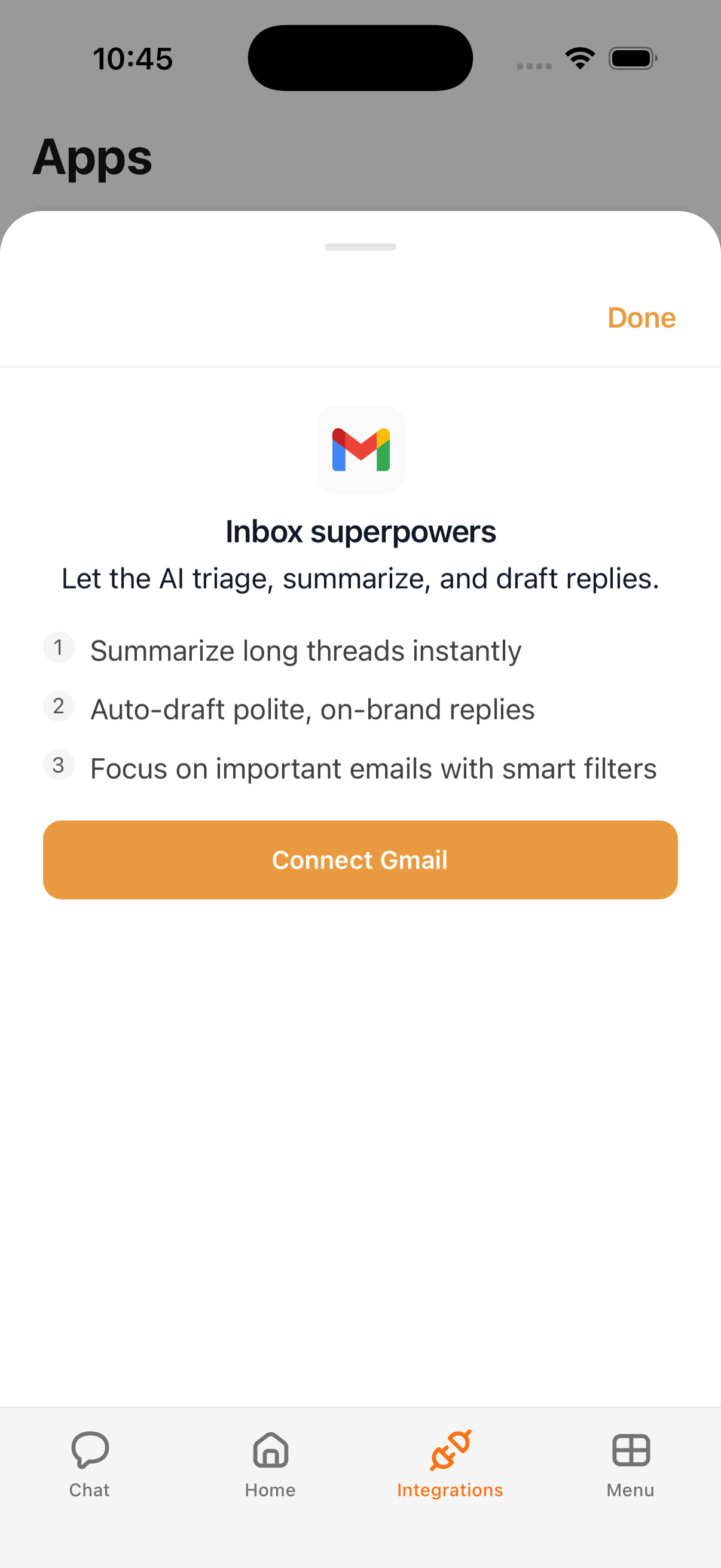
Each Google service is connected on its own. You open the service in Kyona, tap connect, and complete the Sign in with Google flow for that service. The next service you add goes through the same flow again, even if you have already signed in to another Google service in Kyona.
This keeps each connection scoped to the service you actually want Kyona to act on. If you only want Kyona to touch Drive and Docs, you only connect those two.
Permissions are per service
Every Google service in Kyona has its own permission settings. You can set each one to:
- Off — Kyona won't use the service, even if it's connected.
- Ask First — Kyona asks before each action, so you approve every read or change.
- Always — Kyona can act without asking, useful for trusted, routine work.
You can mix these freely. A common setup is Always on Tasks and Contacts, Ask First on Docs edits, and Off on Blogger until you actually want Kyona drafting posts.
Example prompts across services
Once a few Google services are connected, you can ask Kyona things like:
- "Create a Google Doc with the notes from our last conversation."
- "Make a four-slide deck for tomorrow's standup."
- "Add 'review contract' to my Tasks for Thursday."
- "Pull Sarah's phone number from my Contacts."
- "Start a new budget sheet and fill in last week's numbers."
Today, Kyona works best with the documents, sheets, and slides it creates for you, or ones you open and share with it. Searching your full Drive to find an existing file by name is coming soon. Kyona figures out which service to use based on what you ask. If a service isn't connected yet, Kyona will tell you and point you at the connect step.
Coming soon
- A bundled Sign in with Google flow so you can connect several Google services at once instead of one by one.
- Browsing and searching across your full Google Drive, beyond the files Kyona creates for you.
- Deeper editing inside Google Slides, including layout changes and theme adjustments.
- Reading your Google Fitness activity data.