
Kyona Files
Kyona Files is your personal file storage inside the Kyona app — uploads you send, attachments from chat, photos Companions generate, and files Kyona makes for you.
Getting to Kyona Files
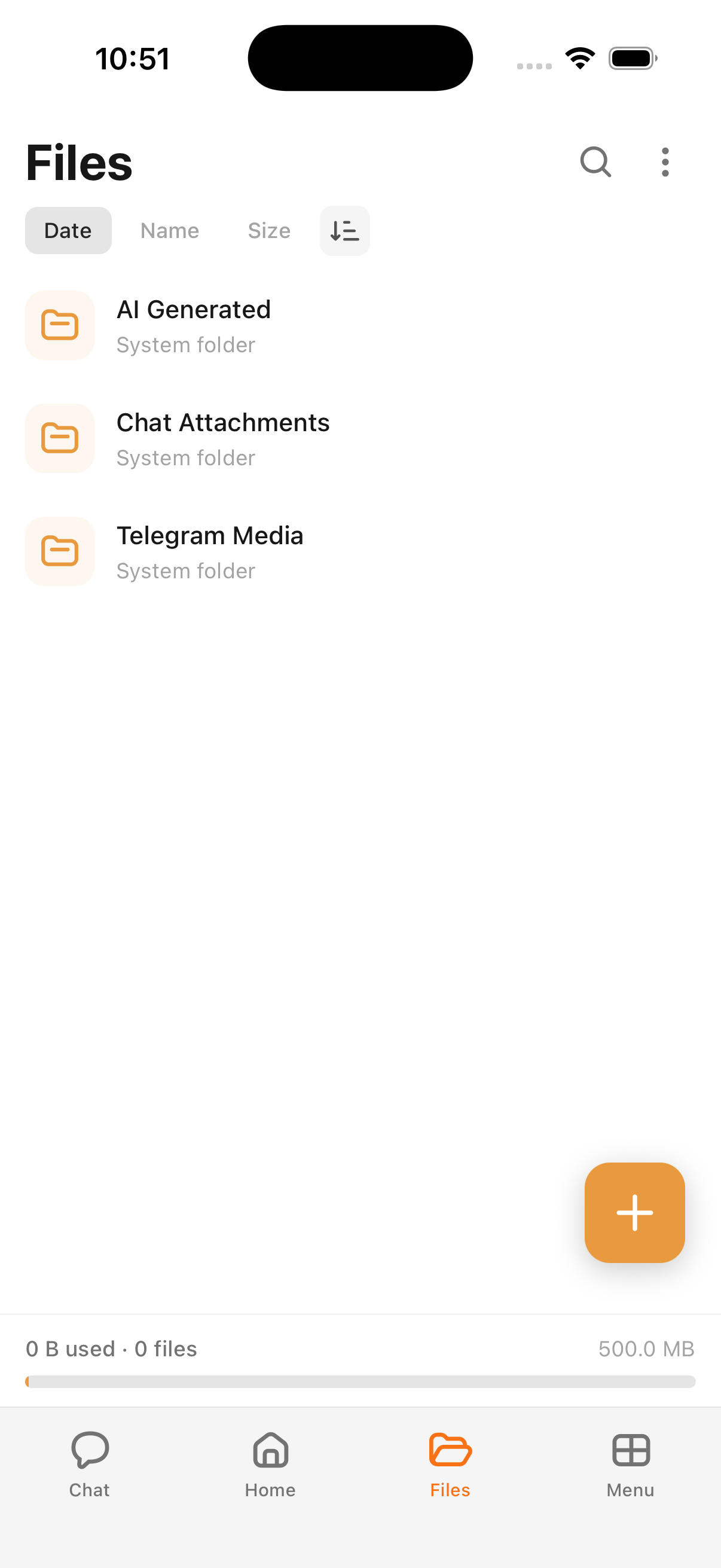
Open the Kyona app, tap Menu in the bottom bar (the grid icon), then choose Files. The Files screen opens to your top-level view: system folders that Kyona creates automatically, any folders you've made yourself, and a storage quota bar at the bottom.
Where your files come from
Files in Kyona come from several places, and each source is collected into its own folder so you can find things quickly.
- Your uploads. Anything you add directly with the upload button on the Files screen.
- Chat attachments. Files and images you share with Kyona in chat, and files Kyona sends back to you.
- AI-generated images. Photos created by Companions or generated by Kyona during a conversation.
- Telegram media. Files Kyona picks up from your connected Telegram channel — photos, voice notes, and documents.
- Kyona-created files. Documents, summaries, and other files Kyona produces for you on request.
System folders
Kyona groups files by source into system folders so the most common things are one tap away. You'll typically see folders like AI Generated, Chat Attachments, and Telegram Media at the top of the Files screen, alongside any folders you create yourself.
System folders fill in automatically as files arrive. You don't need to sort anything by hand to keep them tidy.
Uploading your own files
Tap the floating action button in the bottom-right corner of the Files screen to add a file from your device. You can store almost any file type in Kyona, but only some can be read and referenced in conversation.
- Indexed by Kyona. PDFs, text files, images, and audio files. Kyona can read these and use them as context when you ask about them.
- Stored only. Other file types are saved and downloadable, but Kyona can't read their contents.
If you want Kyona to answer questions about a document, upload it as a PDF or text file.
Finding a file
The Files screen gives you three ways to navigate.
- Search bar. Search by filename or by content inside the file. Indexed documents are matched on the words they contain, so you can find a PDF by a phrase you remember.
- Sort controls. Reorder the current folder by Date, Name, or Size, and tap the toggle beside them to flip the direction (ascending or descending).
- Breadcrumb. When you're inside a folder, the breadcrumb at the top of the screen shows your path. Tap any segment to jump back.
You can also ask Kyona in chat — for example, "find the contract you summarized last week" — and Kyona will surface the file with a link you can tap.
Working with files
Open and manage files directly from the Files screen.
- Tap a file to open it. Images open in a viewer where you can pinch to zoom and double-tap to zoom in. Other files open with your device's default viewer.
- Long-press for multi-select. Pressing and holding any file enters multi-select mode, so you can tap additional files and delete them as a group.
- File actions. Use the action menu on a single file to add or edit a description, rename it, share it, or delete it.
Storage quota
The bar at the bottom of the Files screen shows how much of your storage allowance is in use. Everything in Kyona Files counts toward this total — your uploads, chat attachments, AI-generated images, Telegram media, and files Kyona creates for you.
If you're approaching your limit, the bar will fill toward full and you'll be prompted to clear space or upgrade. Deleting files frees up room right away.
Spaces vs Kyona Files
Spaces is a separate feature for browsing files inside a connected outside workspace — today, that means Notion. Spaces shows you live pages and databases from the tool you've connected, with Kyona's permission settings applied. It does not store copies inside Kyona.
Kyona Files, by contrast, is storage that lives inside Kyona itself. Files there belong to your Kyona account and stay available even if you disconnect an outside tool. Use Kyona Files for personal storage and quick reference; use Spaces when you want to work with content that already lives in a connected app.
See also
- Connecting your Notion workspace — how Spaces works when Notion is connected.
Your morning brief
Kyona puts together a short summary of your day on the Home tab — calendar, email, tasks, and proactive nudges — and refreshes it throughout the day.
Companions
32 AI companions with their own personalities, voices, and photos. Browse them in the Kyona app and chat with them through Telegram.