
Kyona user guide
This guide covers everything Kyona can do, how to set it up, and where to find Kyona across the places you already spend your day.
Kyona is a personalized assistant that remembers what you tell it, talks with you by voice or text, and can take action across your calendar, email, notes, and the other apps you connect. The same Kyona shows up wherever you talk to it, and the memory stays the same across every surface.
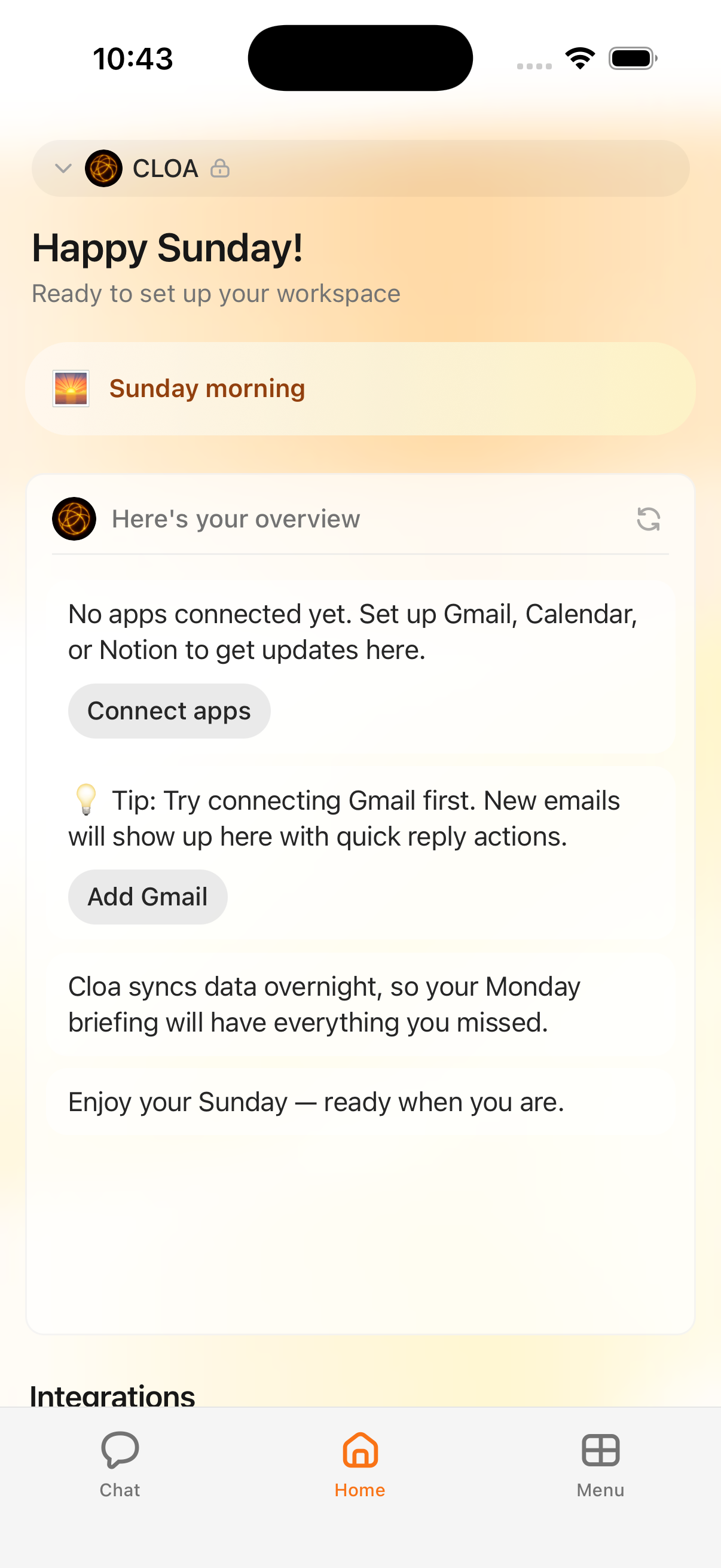
Where Kyona lives
Kyona is one assistant that shows up in several places:
- The mobile app for chat, voice calls, your Home tab, and your saved files.
- Live voice calls with barge-in, so you can interrupt and keep talking.
- Telegram and Discord, where the same Kyona replies in your direct messages.
- Companions, which are separate personas you reach on Telegram.
Your memory, your connected apps, and your settings stay the same across all of these. For the full map of every surface, see Where Kyona lives.
Start here
If you're new, these two pages get you running in a few minutes:
- Get the app — Download Kyona, sign in with Google or email, and set up your account.
- Where Kyona lives — A quick tour of the mobile tabs, voice calls, and the messaging surfaces.
What Kyona can do
The basics
The everyday surface of Kyona, available to every account.
- Memory — How Kyona remembers what you tell it, and how to review or correct it.
- Voice calls — Hands-free conversations with barge-in. The chat mic uses tap to start and tap stop to send.
- Daily brief — A short summary of your day that refreshes throughout the day on an hourly schedule.
- Kyona Files — Save attachments and generated files from any conversation and find them again later.
Companions
A separate set of AI personas, reachable on Telegram, with their own voices and photos.
- Companions overview — What companions are and how they differ from Kyona itself.
- Set up a companion on Telegram — Link your Telegram account and start a chat.
- Photos and voice notes — How companions send images and voice messages.
- Your companion's memory — What each companion remembers about you.
Automations
Routines that run on their own and ping you when something needs your attention.
- Automations overview — How to create a routine, edit the steps, and pause it.
- Background actions — What runs while the app is closed and how you'll be notified.
Workspaces
For teams who share a single Kyona for shared apps, shared memory, and shared billing.
- Workspaces overview — When a workspace makes sense.
- Create a workspace — Set one up and invite your first members.
- Bring your own Telegram account — Use your own Telegram account for the workspace.
- Members and roles — Who can see what and who can change settings.
Connect your apps
Linking your apps lets Kyona read what you need and take action on your behalf. Each app uses the same Sign in with Google or Sign in with Microsoft flow you've seen on other apps, and you stay in control of every action.
- Connect your apps overview — How connections work, what gets stored, and how to disconnect.
- Permissions — Kyona uses three settings per app: Off, Ask First, and Always. You can change any of them at any time.
Per-app guides:
- Google Calendar
- Gmail
- Google Workspace — Docs, Drive, Sheets, and Slides.
- Notion
- Slack
- Outlook
- Lark
- Strava
- Telegram personal
Channels
Channels are the messaging surfaces where you can chat with Kyona outside the mobile app.
- Channels overview — How channels relate to the mobile app and your memory.
- Telegram — Chat with Kyona in your Telegram direct messages.
- Discord — Chat with Kyona in your Discord direct messages.
Account and billing
- Plans and billing — Free, Plus at $14.99 per month, and Pro at $39.99 per month.
- Privacy and your data — What Kyona stores, how to export it, and how to delete it. The in-app delete-account button is coming soon. Email [email protected] if you need to delete your account today.
- App settings — Language, voice, notifications, and other preferences.
The mobile app layout
The Kyona app has three pinned tabs at the bottom — Chat, Home, and Menu — plus a fourth dynamic slot that shows whichever app you most recently opened. The Menu opens a popup with seven items: Companion, Files, Spaces, Integrations, Channels, Automations, and Settings.
Need help
- Common issues — Quick fixes for the most frequent problems.
- Integration issues — Fix connection and loading errors.
- Voice call issues — Audio and connection troubleshooting.
- Coming soon — Features we're still building, including in-app companion chat, Apple Sign-In, and the delete-account button.